
One timeline, frame-exact
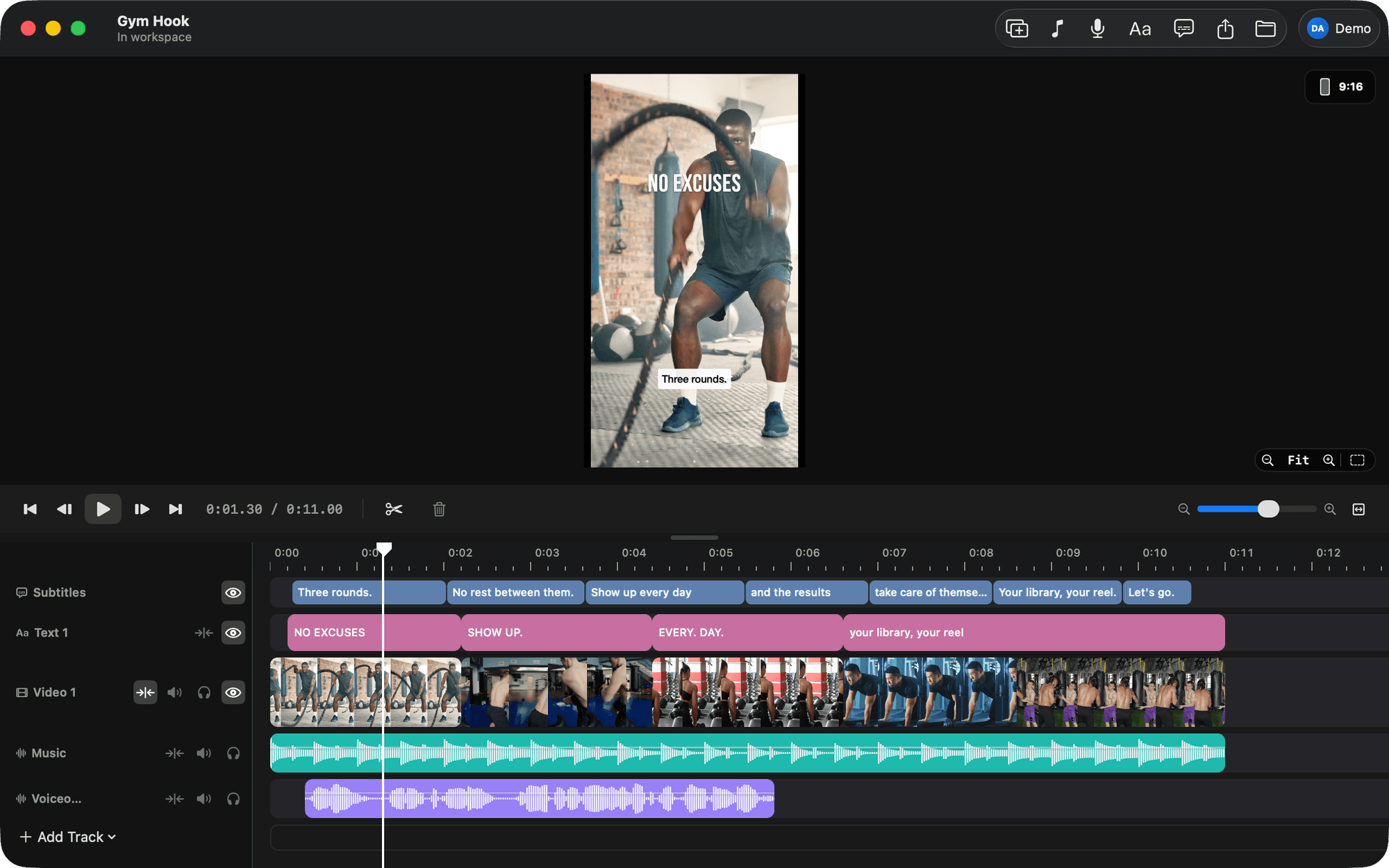
Drop footage on the timeline, trim either edge and see the exact frame, split, and rearrange while the neighbours slide out of the way. 4K HDR scrubs without a spinner.
BetterEdits is a small editor for the short videos you make every week, and the one an AI agent can drive. It has three parts: the editor you use by hand, the agent that uses it for you, and the footage analysis that gives the agent the words.
A fast Mac editor in the spirit of Instagram's Edits app: one magnetic timeline, frame-exact trims, and only the parts a short video needs. Free, no account, and it works offline.
Drop footage on the timeline, trim either edge and see the exact frame, split, and rearrange while the neighbours slide out of the way. 4K HDR scrubs without a spinner.
The Sources sidebar shows the video's own files and your footage libraries. Files in a library are used in place and never duplicated. Anything else is copied once.
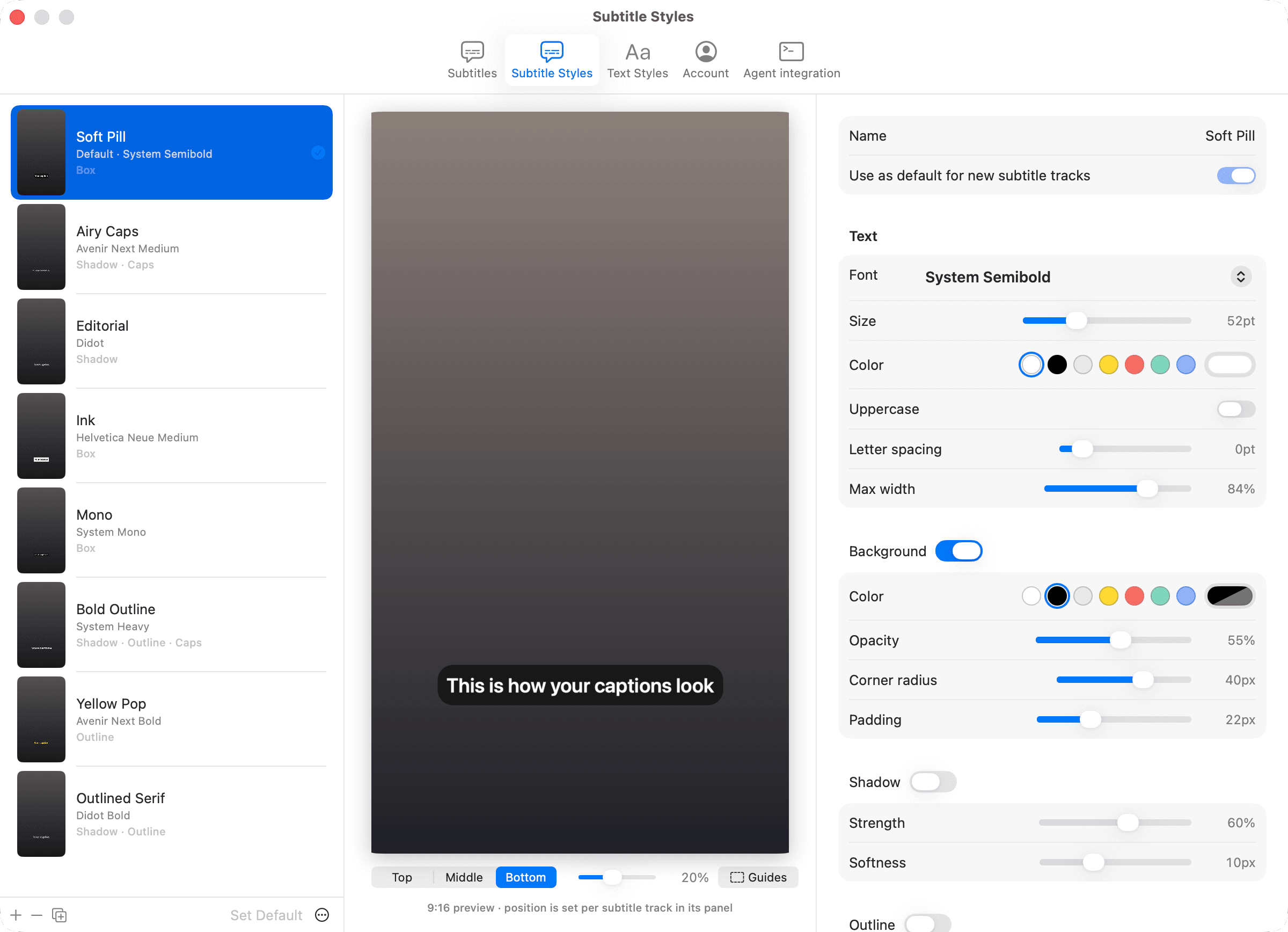
A track of bars in eight styles with a live preview, positioned per track, kept clear of Instagram's UI by the guides. Burned in at export.
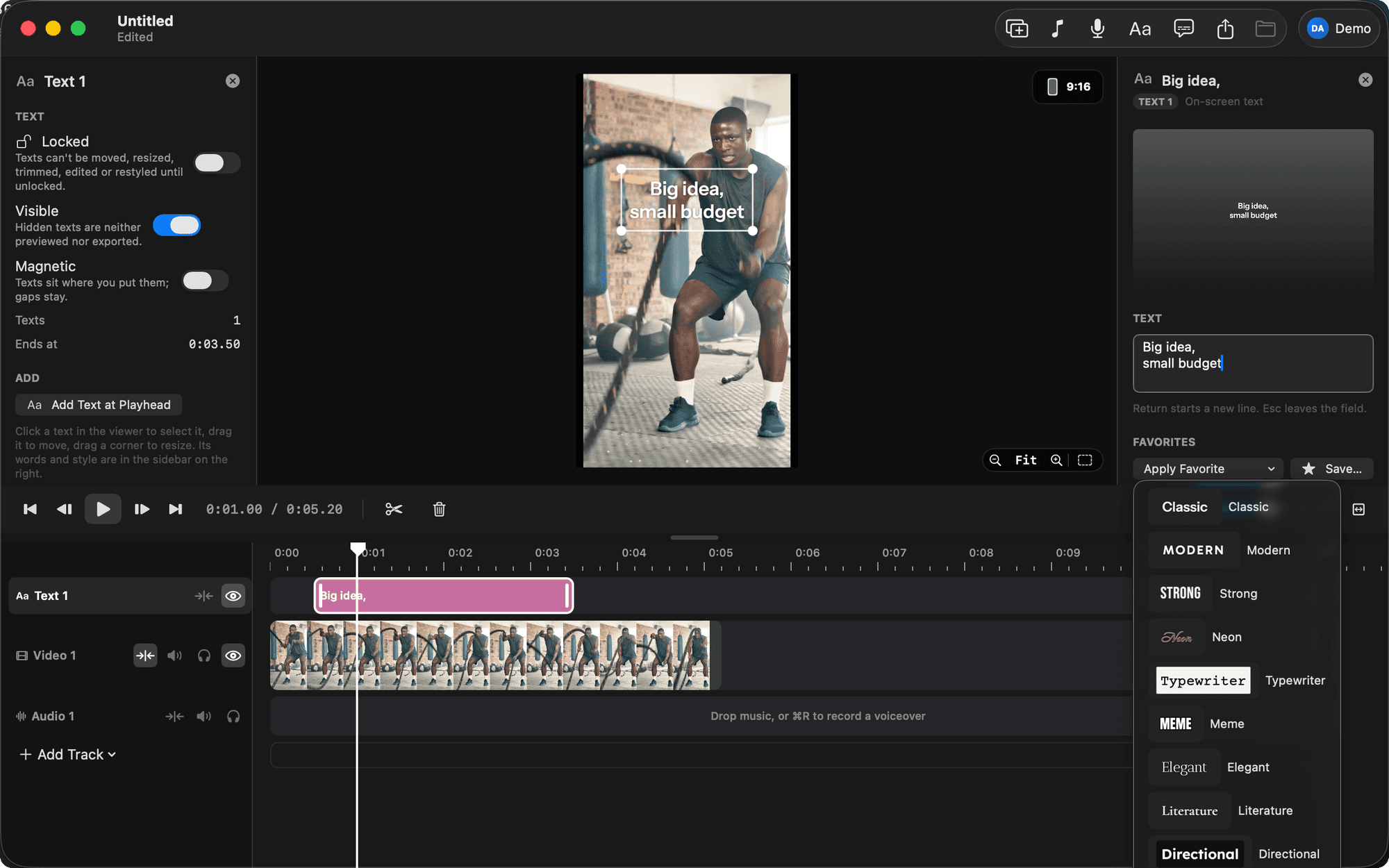
Classic, Modern, Strong, Neon, Typewriter, Meme and eleven more, plus every font on your Mac. Save the looks you like as favorites.
Record from the playhead while the timeline plays, and the music ducks under your voice on its own. Detach a clip's sound to cut picture and sound separately.
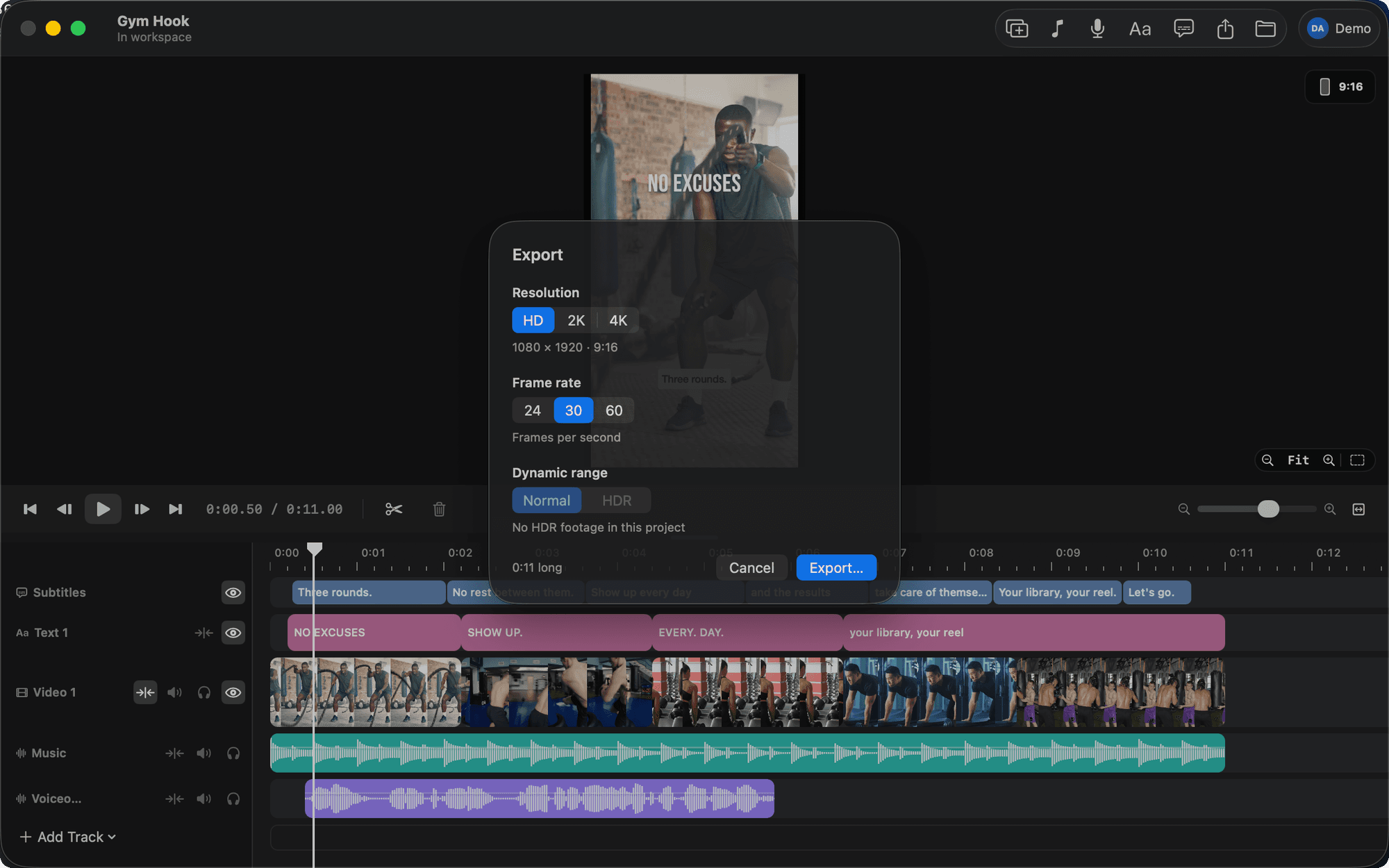
HD, 2K or 4K at 24, 30 or 60 fps, with HDR kept. Files go to your Movies folder, never inside the workspace. Export one clip on its own if you like.
Claude Code, Codex, Cursor and any agent that speaks MCP get the same tools: the video as a document, the words in your footage, frames to check with, and export. Every change is one undo step in the app.
The agent asks the app for the open video as one document, edits it, and hands it back. The app checks every line and applies it as one undo step, or refuses it and says where the problem is.
Once the footage is analysed, a cut can start at a sentence and a pause is a number. “Cut the pauses over a second” lands on the right frame.
Ask for a hook, a demo and a call to action and the agent lays out named placeholders with notes, a title over the hook and a music slot, before there is a single clip.
Bars written from the transcript, cut by the rules in Settings, never across a cut, one speaker per bar. Ask again after you recut.
The agent renders a frame or a contact sheet of the cut and reads it like any image before it tells you it's done. It can also move the playhead and select a clip to show you what it means.
Connect an Agent adds the server to Claude Code, the Claude app or Codex with one Install button. Cursor and any other MCP client take one command from Settings.
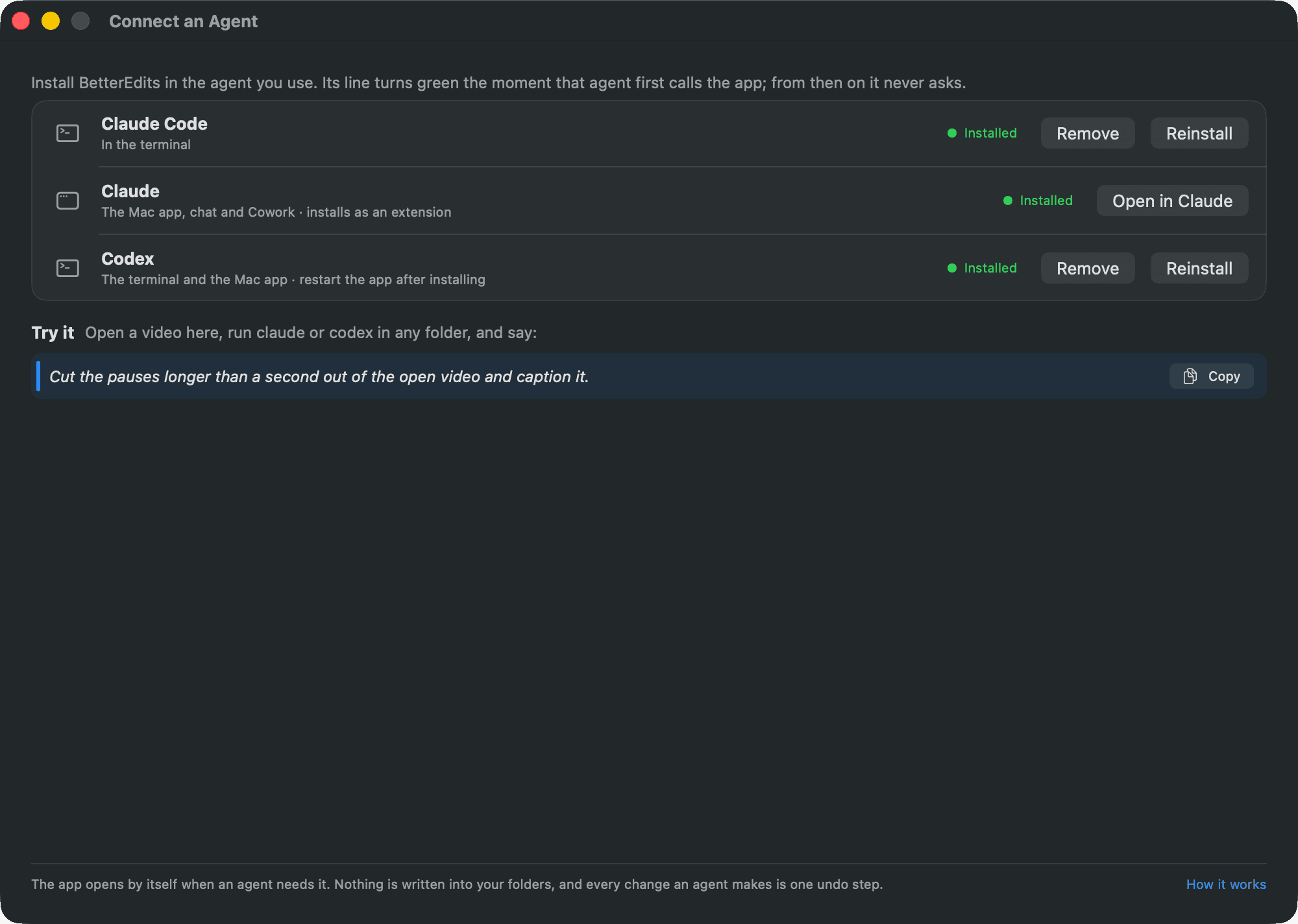
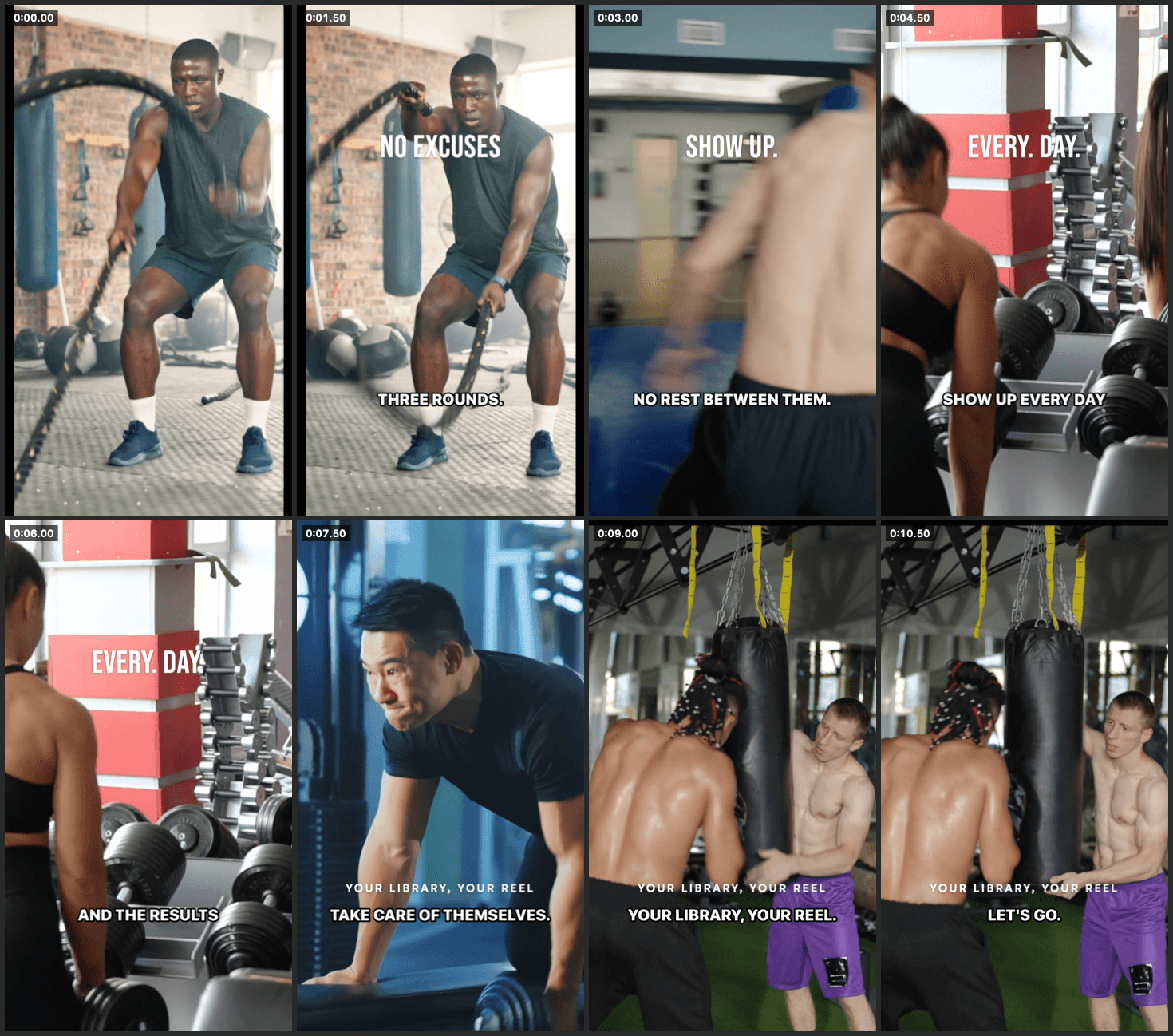
There is a page for each agent: Claude Code, Codex and Cursor. The manual explains the whole round trip in How an agent edits.
A language model has no eyes and no ears. Give it a folder of raw footage and the best it can do is cut by the clock. BetterEdits analyses each file once and hands the agent what it found as text: every spoken word and when it was said, who said it, the pauses, the words on screen, the scenes and the beats. That is why “cut the pauses” lands on the right frame, and why an agent can't do this on its own.
The transcript with a start and an end for each word, so a cut can begin exactly where a sentence does.
Speakers are told apart, so a change of voice ends a caption bar and a two-person clip cuts cleanly.
Every silence and false start as a number. That is what “cut the pauses” is made of.
Text the camera saw, so the agent can find the slide or the sign you mean.
Where the picture changes and where the music lands, for montages cut on the beat.
On Pro the app analyses everything in your workspace by itself as files arrive, and saves the result next to each file. Every cut you make from that file afterwards costs nothing more. See pricing.
What the agent reads for one file. It is text, so the agent can reason about all of it at once.
Where your videos live: a document of plain files that saves itself and never duplicates a shoot.
A workspace is a .betteredits package: one document in Finder that opens in the app, plain files inside (Show Package Contents): workspace.json, a settings/ folder, projects/<Name>/ with three JSON files each, and a cache/. New Workspace… asks for a name, a place, what you make and where your footage lives; the welcome screen lists workspaces opened before.
New Video… asks a name, what the video is about, the canvas and how to start, creates the folder, and writes every change back within a third of a second. No dirty state, no recovery prompt, full undo and redo.
project.json holds the canvas, the brief and the media by name; timeline.json the tracks with one clip per line; styles.json the looks. Written for reading: keys in order, defaults left out, no ids anywhere.
Nothing else writes the files. An agent asks for the video as one JSON document, edits it and commits it back as one undo step. The reader is strict: a mistake is refused with the file and the place, and nothing changes until it is fixed.
Files inside the workspace's media folders are used where they are. Anything else is copied once into the video's media/ folder and stored by relative path, so a video's folder moves as one piece.
Removing a media folder that videos still use warns first and offers to copy the files into each video's own media/ folder before the folder goes.
Open, rename, duplicate, trash and reveal videos from the workspace window; each card shows its size on disk. Close forgets the workspace and shows the empty state, deleting nothing.
Save a Copy As… writes a video as one .be file, the three documents in one JSON object. Import Project File… copies a .be into the workspace.
The media sidebar: the video's own files, your footage libraries, and files that went missing.
The left column shows the video's media/ copies and each library as a folder to enter, with subfolders and a breadcrumb back, as a grid of thumbnails at their own shape with their lengths.
Click a tile once and it plays in the main player, sized to its own picture, with its own play button, time and scrubber. The panel on the right shows where it lives, its length, size, frame rate and sound.
Drag a tile onto the timeline, double-click it to add it to the active track at the playhead, or right-click for Add to Timeline, Open, Reveal in Finder and Export a Copy….
Files dropped on This video, from Finder or a library, are copied into the video's media/ folder without touching the timeline. Import… at the foot brings in video, photos and sound from anywhere.
From a clip's right-click menu or the link under its name in the inspector: opens the source the clip's file lives in, nested folders included, scrolls to its tile and lights it up.
A file gone from disk becomes a red clip that plays and exports as a labelled plate. Relink… or Choose from Sources points it at another file and every clip follows; a file put back is picked up on its own.
A dot on every file says whether it is analysed. The queue shows what is running, what it costs and what is left, and pauses with one click. A file and its analysis move together when the app copies, consolidates or exports it.
What gives the agent the words. Each file is read once and the result is saved next to it, so every cut after that starts from what was said.
The transcript of a file with a start and an end for every word, so a cut can begin at a sentence and captions land where the words do.
Who said what, every pause and false start as a number, the text the camera saw, where the picture changes, and where the music lands.
A file is analysed once and the result sits next to it. Every video cut from that file afterwards, this week or next year, costs nothing more.
You never type a command. On Pro the app analyses every file in your workspace as it arrives, this video's files first and then your libraries, newest first. A dot on each file shows where it stands, and one button pauses the queue.
For a video the app uploads a low-resolution proxy with its sound; for audio, the file. The copy is deleted when the analysis is done. Editing never uploads anything.
Copy a file into a video, consolidate a media folder or export a copy, and its analysis comes along. The editor never shows what is inside it. The agent reads it.
Video is 3 credits a minute of the file, audio 1, an image 1. Pro grants 450 a month, about 150 minutes of raw video, and they never expire.
One timeline where footage is dropped, trimmed, split, rearranged and stood in for.
Drop video, photos or audio from Finder, or press ⌘I. Photos become 3 s clips you can stretch to 60 s.
Drag either edge of a clip; the viewer shows the exact frame at that edge while you drag. S or ⌘B splits the selected clip, else the active track, at the playhead. ⌫ deletes the selection.
Drag a clip along the track and its neighbours slide out of the way and snap into place. Drag it up or down to move it between tracks of the same kind.
N toggles snapping to clip edges and the playhead. On a free track ⌥← and ⌥→ nudge a clip by a frame, ⌥⇧← and ⌥⇧→ by a second.
⌘C and ⌘V paste at the playhead on the active track. ⌘D puts a copy right after the original and selects it; it works for clips, placeholders, texts and subtitle bars.
⇧⌘P drops a named stand-in clip at the playhead. On a video track it plays as a black plate with its name, in the viewer and in exports; on an audio track it is silent. Trim, move, split and copy it like any clip.
Replace with File…, the sidebar's Replace… button, or a file dropped on a placeholder takes the clip's spot and length. A shorter file asks whether to keep its own length or fill the rest with a placeholder.
Drag a clip already on the timeline through the middle of a placeholder and let go: the clip takes the placeholder's spot and length, bringing its own in and out, level and placement.
Edit Range… slides which part of a file a clip plays without moving it. The sheet shows the whole file as a strip with a window the clip's length to drag along it.
Video, audio, text and subtitles rows, each with its own panel, lock, visibility and opacity.
On a magnetic track clips stay packed: trims ripple, deletes close gaps, dragging a clip reorders it. On a free track a clip lands at the nearest spot that fits. Text tracks can be magnetic too.
Whatever you select has its settings on the right: a clip shows the clip inspector, a track header its properties (name, magnetic, visibility, mute, level, ducking, order, delete), a subtitles track its Track and Bars tabs.
A locked track refuses every edit: moves, trims, splits, deletes, drops, level and framing changes, and on a subtitles track the bars, style and position. Mute, solo and level still work.
The headphones button solos a track. The eye hides a video, subtitles or text track from the preview and the export; a hidden video track's sound still plays, and hidden tracks dim in the timeline.
Video tracks have an opacity. Below 100% the tracks beneath show through; placeholders take their track's opacity. Headers show a quiet badge when level or opacity is not 100%.
Click a header, or empty space in its row, to focus a track. S, ⌘V and Add Placeholder act there when nothing is selected. Drag the bar above the tracks to resize the area; it scrolls when tracks overflow.
Recording from the playhead, music that ducks, and sound that cuts separately from picture.
⌘R or the mic button records while the timeline plays, drawing the take live on a voiceover track. The transport shows a countdown, then the input device and a live level meter. Stop with Space.
Import a sound file with ⌘I, or drop one on an audio row. Drag to position, trim the edges, set the volume. A voiceover take is a clip like any other: trim, move, split, level.
Music ducks under voiceovers automatically. Ducking is a per-track switch in the track panel.
Hover a clip with sound to reveal its Final Cut style level line; drag it up or down (snaps at 100%, yellow otherwise). Clips not at 100% wear a speaker badge. Tracks have their own level from 0 to 150%.
⇧⌘D copies a video clip's sound onto a new audio track and silences the video clip, so picture and sound cut separately: a J-cut is a trim away.
Exporting a selected audio clip saves its sound alone as an M4A. A hidden video track's sound still plays; mute the track or set the clip's level to zero to silence it.
Bars written from the transcript of your footage, fixed inline, styled with a live preview, burned in at export.
Ask Claude Code for captions and it fills a Subtitles track with bars from the words in each clip's footage, mapped to the timeline and cut by the rules in Settings. There is no Generate button in the app. The words come from the analysed footage.
The Bars tab lists every bar for inline editing: click a time to seek, ⋯ or right-click to merge, split or delete. Clicking a bar in the timeline selects it and seeks; Esc drops the selection.
A bar is a start, an end and its text, linked to nothing else. Move, trim, split, merge and edit bars like any clip. They don't follow later cuts, so do captions last or ask the agent to write them again.
The Track tab has lock, visibility, style, position (Top / Middle / Bottom plus inset), and arrange and delete. The style menu previews each style in its own look.
Settings › Subtitle Styles edits caption styles with a live 9:16 preview: font, size, colours, background, outline, shadow, uppercase.
Settings › Subtitles holds the rules the words are cut by: the most words in a bar, the longest a bar may last, and the pause that starts a new one. Change them and ask the agent to caption again.
The eye hides a subtitles track from the preview and the export. Visible bars are burned in with the same renderer the viewer uses, brighter than white in an HDR video so they read against the highlights.
On-screen text with 17 Edits-style looks, edited in the sidebar and saved as favorites.
⌘T puts a text at the playhead on a Text track on top of the timeline, adding the track if there is none, and focuses its words in the sidebar. Double-click an existing text to type.
Click a text in the viewer to select it, drag it to move (snaps to the centre), drag a corner to resize so the whole look scales, double-click to edit its words.
Edited in the sidebar: font, size in points, colour, uppercase and spacing, background box, shadow and outline, plus X / Y and Center.
Classic, Modern, Strong, Neon, Typewriter, Meme, Elegant, Literature, Directional, Signature, Editor, Bubble, Deco, Poster, Squeeze, Journal and Rosalia: the closest Google Fonts, bundled with the app.
The Mac's fonts are there too, and the font menu lists every font rendered in its own typeface.
Saved looks, separate from subtitle styles. The Apply menu shows each favorite's name in that look; Save… stores the current one. Settings › Text Styles edits and reorders them; the default dresses new texts.
Texts trim, move, split, copy and delete like any clip and text tracks can be magnetic. The eye hides a text track from preview and export; exports burn texts in. Text never lengthens the video.
Block out the video before you have the footage, fill it when you do, keep it for the next one.
New Video… can start from a talking head, a tutorial, a b-roll montage, a before and after or a listicle: named slots with notes, the texts, and a voiceover or music slot.
A structure's slots carry notes on what to shoot or pick, editable in the sidebar. Any clip or track takes a note; the app keeps it and never renders it.
A template describes a video without footage: video and audio segments with name, start, duration and notes; texts with words, timing, favorite, position and look.
Import Template… starts a video from one: segments become named placeholders in order and texts become text clips. Claude Code can lay out the same structure from a sentence, or copy the slots of one video into the next.
Four canvases, on-canvas framing, and an export sheet that follows the footage.
9:16 by default. The pill in the viewer's top-right corner opens into 9:16, 16:9, 1:1 and 4:5 with miniatures and asks before changing.
Positions and scales are normalized, so switching the canvas keeps clips, text and captions where they were. Exports follow the canvas, grown to the footage's size.
Drag the selected video clip in the viewer to move it, pinch or scroll to scale, drag the corner handles, or use Crop mode's edge handles.
The Guides menu on the viewer shades the Reels UI and the feed and grid crop zones, so text and captions land where the app will not cover them.
⌘E opens options like the Edits share sheet: HD / 2K / 4K, 24 / 30 / 60 fps, Normal / HDR. HDR is offered only when the footage is HDR; Normal tone-maps to Rec. 709. Defaults follow the footage.
iPhone HLG footage stays HDR through the preview and the HEVC 10-bit export; otherwise exports are H.264/AAC MP4. The preview renders at 1080p; the export at the footage's size, up to 4K.
Exports burn the visible subtitles and texts in with the same renderer the viewer uses. Hidden tracks are left out. Files land in your Movies folder, or wherever you last exported, and the first export in a workspace says where.
⇧⌘E or the button in the clip sidebar exports just the selected clip: a video clip renders its stretch of the timeline with everything on it.
One click adds the app to Claude Code, the Claude app or Codex. The agent then edits the video for you, one undo step at a time. Part of Pro.
Connect an Agent, in Help or behind the toolbar's Agent button, adds BetterEdits to Claude Code, the Claude app or Codex as an MCP server with one Install button each. Any other MCP client takes the command shown in Settings › Agent integration. A guide travels with the server and tells the agent how videos are made here, what every tool does, and how tracks, clips, text and captions behave. Nothing is written into your folders.
The agent asks the app for the open video as one JSON document, edits it, and hands it back. The app checks every line and takes it as one undo step, or refuses it with the place and changes nothing.
Whatever the agent does lands in the app exactly like a change you made by hand. You see it in the timeline as it happens, and ⌘Z takes it back.
It can't watch video, so it reads the analysis next to the footage and renders itself a frame or a contact sheet: a grid of labelled frames with the text and captions drawn on.
A commit made on a stale copy of the video, after you changed something by hand, is refused; the agent fetches the document again and redoes its edit on yours.
The agent brings its own model. The app holds only your BetterEdits sign-in, made once from the account badge. It lives in the app's own settings, never in a workspace, and the dashboard can sign a Mac out.
The agent can move the playhead and select a clip to show you what it means. It sees the names you give tracks and placeholders, so naming things helps you both follow along.
Claude Code is what we build for and test with. The Claude app and Codex have their own Install buttons in Connect an Agent. Cursor and any other agent that speaks MCP take the same server command from Settings › Agent integration.
Every key the editor listens to, so your hands stay on the keys.
Space plays and pauses. ← and → step a frame, ⇧← and ⇧→ a second, Home and End jump to the start and end. Click or drag in the ruler or empty track space to scrub.
S or ⌘B split, ⌫ deletes, ⌘C / ⌘V / ⌘D copy, paste and duplicate, ⌥← ⌥→ nudge, N toggles snapping, ⌥⌘L locks the active track, ⌘Z / ⇧⌘Z undo and redo.
⌘R records a voiceover, ⌘I imports media and music, ⌘T adds text, ⇧⌘D detaches audio, ⇧⌘P adds a placeholder.
Pinch or ⌘-scroll to zoom, ⌥⌘= and ⌥⌘- step it, ⌥⌘0 or the Fit pill resets. Two-finger scroll pans.
Pinch, ⌘-scroll or ⌘= / ⌘- zoom the timeline; ⇧Z fits the whole piece. Two-finger scroll pans it.
⌘N new video, ⌘O open, ⌘W close the video, ⌘E export, ⇧⌘E export the selected clip, ⌘, settings. Esc deselects the clip, then closes the track panel.
The editor costs nothing. Pro is $29 a month, or $23 a month billed yearly, after a 7-day free trial. It includes 450 credits a month, enough to analyse about 150 minutes of raw footage.
