
Record a voiceover and add music
Record a take from the playhead while the timeline plays, drop a song underneath, and let the music duck under your voice. Done by hand, since the agent can't hold a microphone.
Some things you do by hand. Recording a voiceover is one of them: Claude Code can lay out the slots and cut the picture, but it can't hold a microphone. This tutorial is the sound pass on a cut you already have, in the editor.
You need a video with clips on the timeline, and a song as an audio file.
Record a take
Put the playhead where the take should start. Press ⌘R, or click the microphone in the transport bar above the timeline.
The Record a voiceover sheet asks where to record to (a new audio track, or an existing one) and which microphone to use, and shows the input level. Click Record. The viewer counts 3, 2, 1, the timeline plays from the playhead, and the take draws live on its track as you speak.
Press ⌘R again, or click Stop, to end the take. The first time, macOS asks for microphone access.
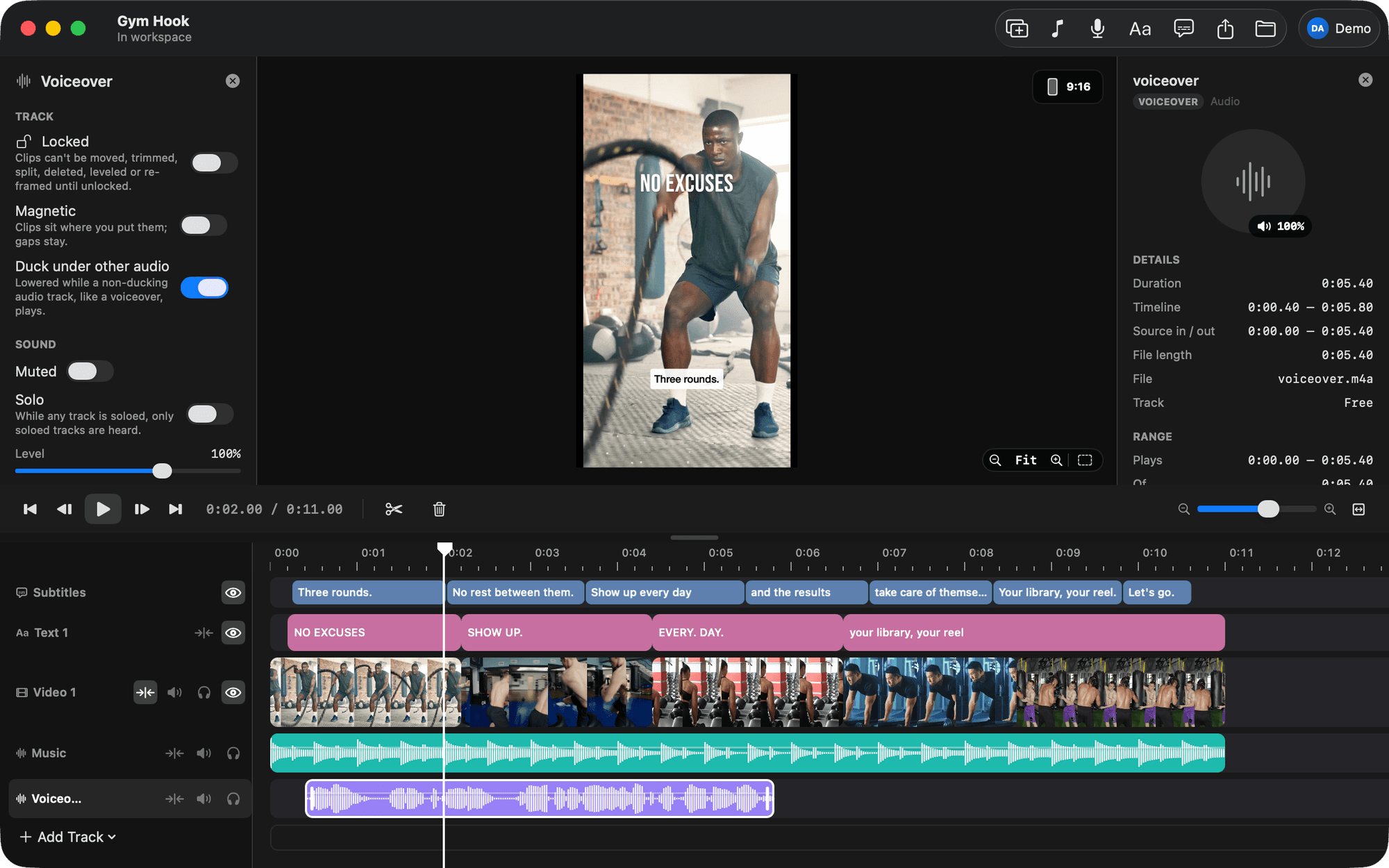
The take is a clip like any other. Trim its edges, drag it along the track, split it, or record another one over a different stretch. A new voiceover track is named Voiceover 1, Voiceover 2 and so on.
Add music
Press ⌘I and choose the song, or drop the file onto an audio row. It lands at the playhead on the active audio track, or on a new one. Drag it into position and trim its edges. Audio never lengthens the video, so a long song is simply cut off at the end.
If the song is in your library it's used where it is. From anywhere else it's copied into the video's own media folder.
Let the music duck
Ducking is a switch per track. Audio 1, where music usually lands, ducks by default. Voiceover tracks don't. So the moment your take plays, the music drops under it with a short ramp on either side, and comes back when the take ends. There are no keyframes to draw.
To change which track ducks, click the track's header and use Duck under other audio in the panel on the right.
Set the levels
Hover a clip with sound and a level line appears. Drag it up or down. It snaps at 100%, and turns yellow anywhere else. Each track has a level of its own on top, from 0 to 150%, in the track panel. Mute silences a track, and the headphones button solos one.
Cut picture and sound apart
If a clip's own sound should carry on under the next shot, select it and press ⇧⌘D. The sound is copied onto a new audio track and the video clip is silenced. Now you can trim the picture without moving the sound.
Where the agent comes back in
The sound pass done, ask Claude Code for the rest:
Caption the voiceover in the default style at the bottom, and show me a contact sheet.
The voiceover is a file in the video's media folder, so on Pro it's analysed like everything else, and its words are there for the captions.
