
Captions: styles, bar rules, fixing words and safe zones
Ask Claude Code for captions from the transcript, pick a look, set how bars are cut, fix a word, and keep them clear of the Reels UI.
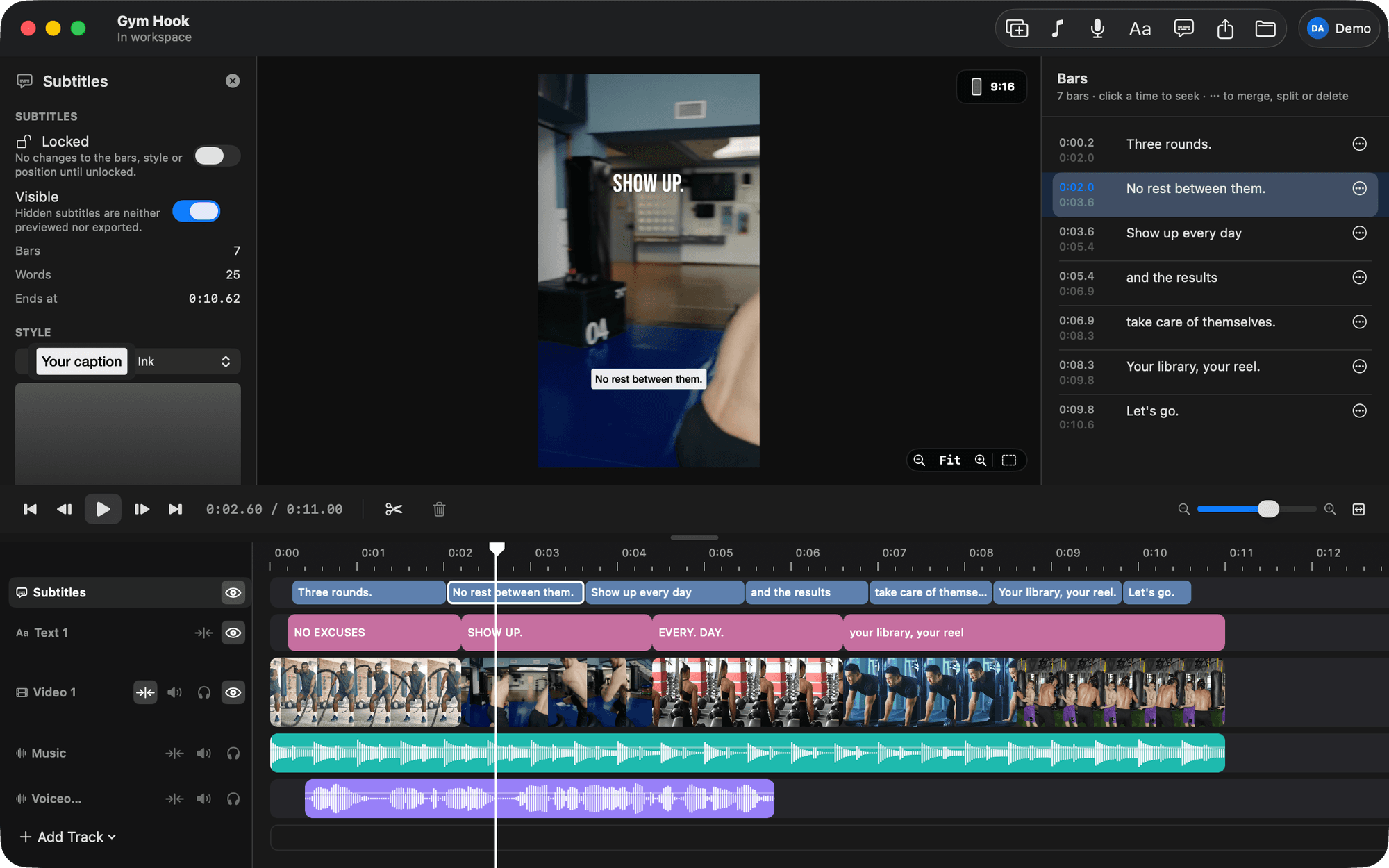
Captions in BetterEdits are a track of bars. Each bar is a start, an end and its text. Claude Code writes them from the transcript, and you or Claude Code fix them like any clip.
You need a video whose footage has been analysed. On Pro that happens by itself. If a file is still on its way, Claude Code waits for it when you ask for captions.
Generate
Caption the video in the default style.
There is no Generate button in the app. Claude Code reads the words of each clip, maps them to the timeline, and cuts them into bars by the rules in Settings.
Bars never cross a cut. A change of speaker ends a bar.
Pick a look
Eight styles ship with the app: Soft Pill, Airy Caps, Editorial, Ink, Mono, Bold Outline, Yellow Pop and Outlined Serif.
Switch the captions to Bold Outline.
Or click the Subtitles track, open the Track tab, and pick from the style menu. Each name is drawn in its own look.
To make your own, open Settings and the Subtitle Styles tab: font, size, colours, background, outline, shadow and uppercase, with a live 9:16 preview. A style you save appears in the menu.
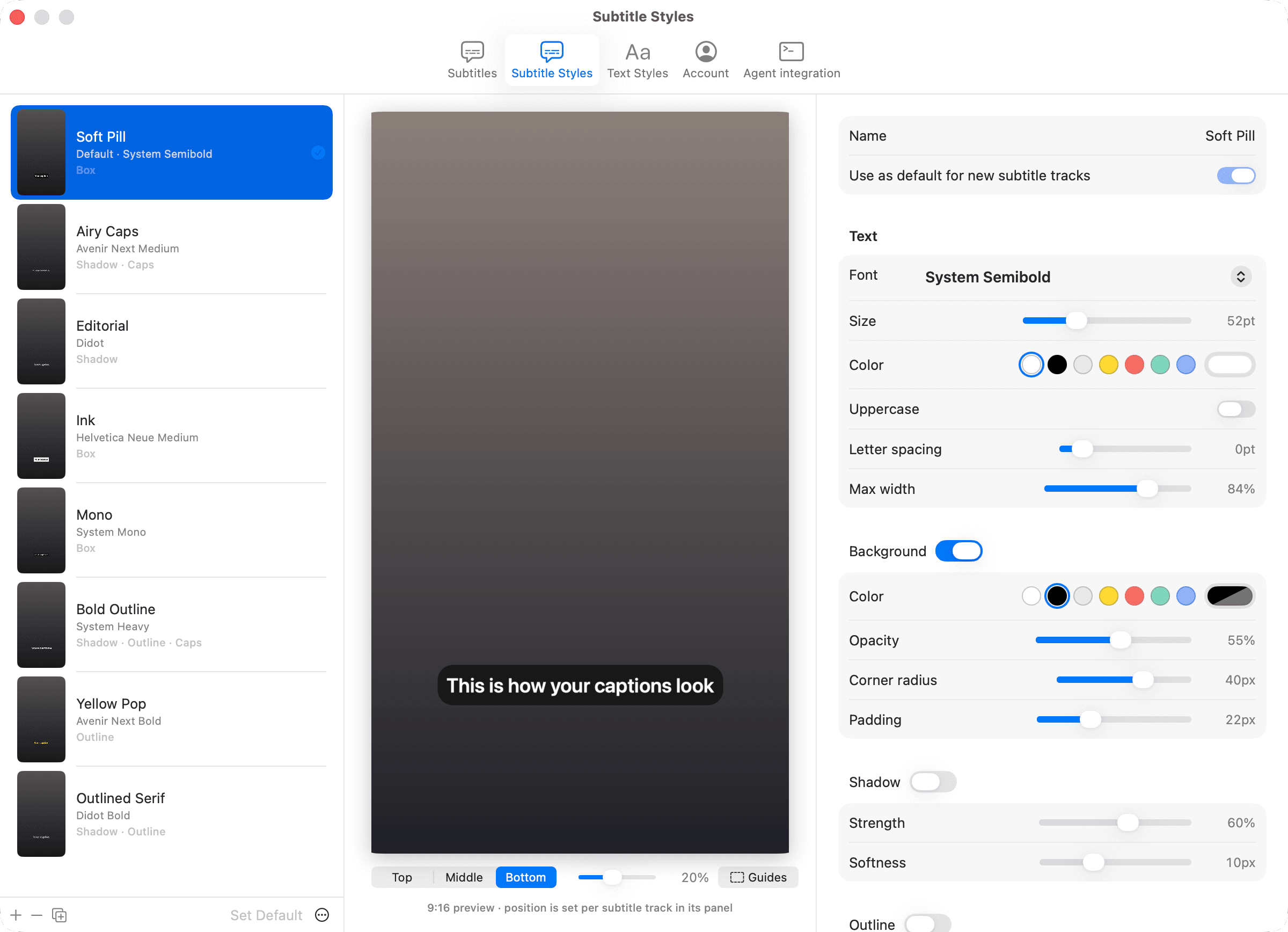
A style is copied onto the track when you apply it. If you change the saved style later, tracks that already use it don't change. Apply it again.
Set the bar rules
Open Settings and the Subtitles tab. Three numbers decide how words become bars:
- The most words in a bar.
- The longest a bar may last.
- The pause that starts a new bar.
Short bars read faster and suit vertical video. Change the rules, then ask for captions again to recut an existing track by them.
Caption it again with the new rules.
Captioning again replaces every bar, edits included. Do captions last, or accept redoing the fixes.
Fix a word
Click the Subtitles track and open the Bars tab. Every bar is there for inline editing. Click a time to jump to it, type to fix the text, and right-click to merge, split or delete. Split cuts at the middle word and shares the time by text length.
Or say it:
In the captions, "there" at 0:42 should be "their". Merge the two bars around 1:10 into one.
Position and the safe zone
Captions sit at the top, middle or bottom of the canvas, with an inset, per track.
Put the captions at the bottom, a bit higher than the default.
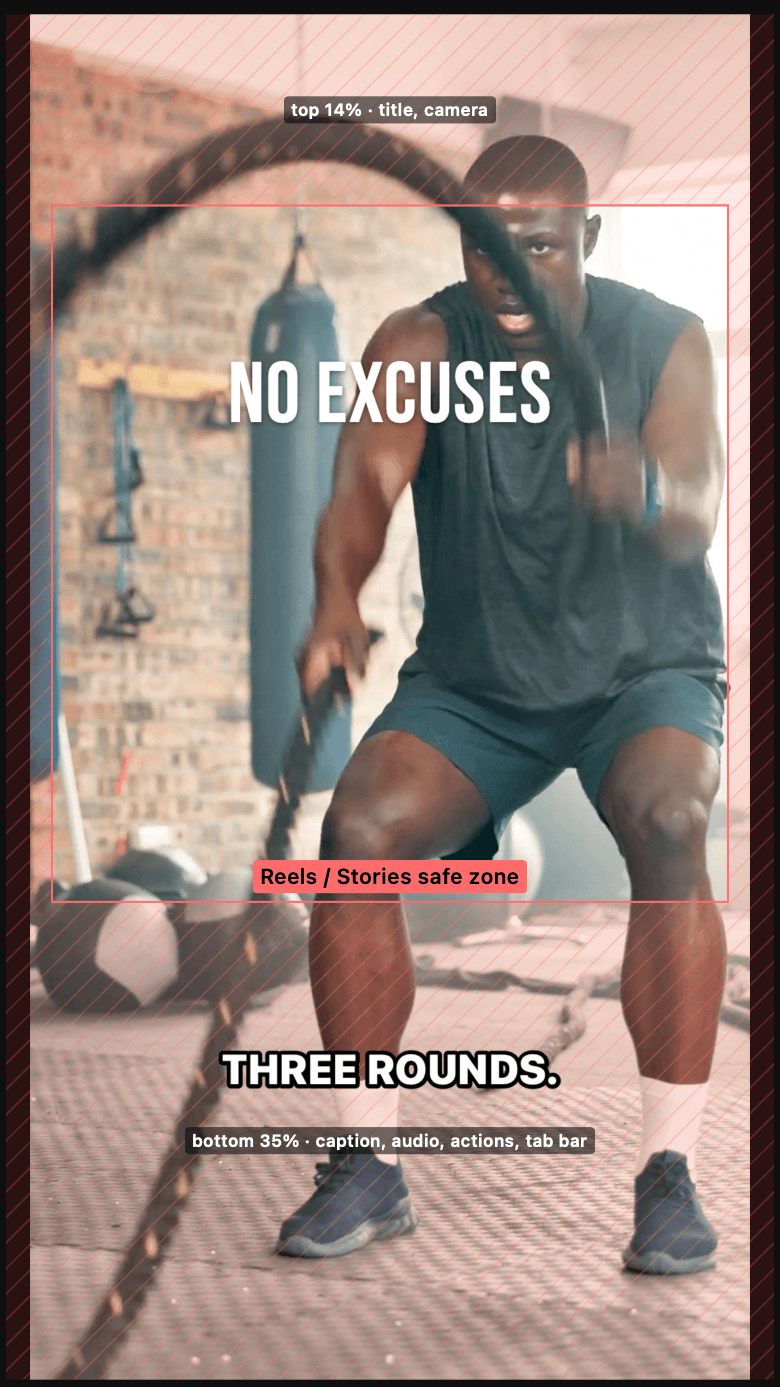
On Reels and Stories, Instagram's own interface covers the bottom of the picture. Open the Guides menu in the viewer and the app shades the top and bottom zones, the feed crop and the profile grid. Keep captions inside the clear area, or ask:
Move the captions up until they clear the Reels caption box.
Claude Code renders a frame to check.
Hide or burn in
The eye on the Subtitles track hides it from the preview and the export. Otherwise captions are burned in at export with the same renderer the viewer uses, so what you see is what ships. In an HDR export, captions and text are drawn brighter so they hold up against the highlights.
Captions without a transcript
A clip whose footage hasn't been analysed gives Claude Code no words. It says so and waits for the analysis, or tells you the file failed. You can still paste a script and ask Claude Code to write the bars from that, then fix the timing in the Bars tab.
