
How to remove pauses from a video automatically on a Mac
The pauses in a talking-head video are numbers in the transcript. Here is how an AI agent finds them, cuts them with a little air, and shows you the result before you watch it.
Every talking-head video starts with the same job: take out the pauses, the ums and the false starts. By hand, that's forty minutes of scrubbing for a forty-second video. From the transcript, it's one sentence.
Here is how it works in BetterEdits with Claude Code, Codex or Cursor connected. The same words work in all three.
Why it's a text problem
A pause is a gap between two words. If you know when every word starts and ends, you know every pause, how long it is, and what's on either side of it. That is what BetterEdits produces when it analyses a file: every spoken word with its timing, the silences between them, and who said what. The agent reads all of that as text, which no agent can do with a raw MP4.
So "cut every pause over a second" isn't a guess about the picture. It's a list.
The ask
Put the recording in a library folder in your workspace. On Pro, BetterEdits analyses it by itself. Then open a video in the app and say:
Cut every pause longer than a second out of take-3.mov. Leave a little air around each cut and remove the two false starts at the top.
The agent reads the transcript and writes the cut: one clip for each stretch between pauses, with a few frames of air on each side so the cuts don't feel clipped.
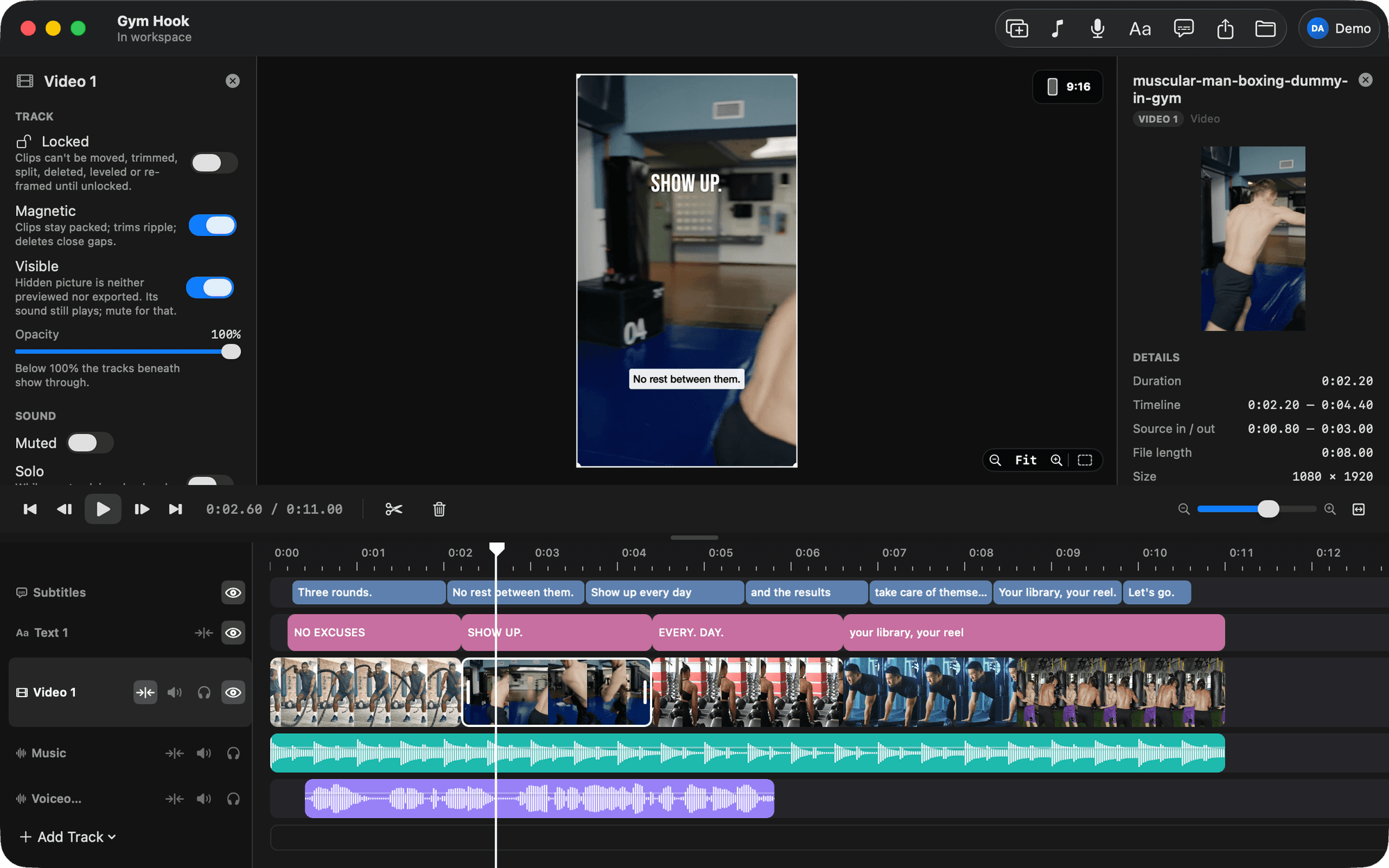
Check it without watching it
The agent can't watch the result either, so it renders itself a contact sheet: one frame per clip, in order, with any captions on. Ask for the same one:
Show me a contact sheet, one frame per clip.
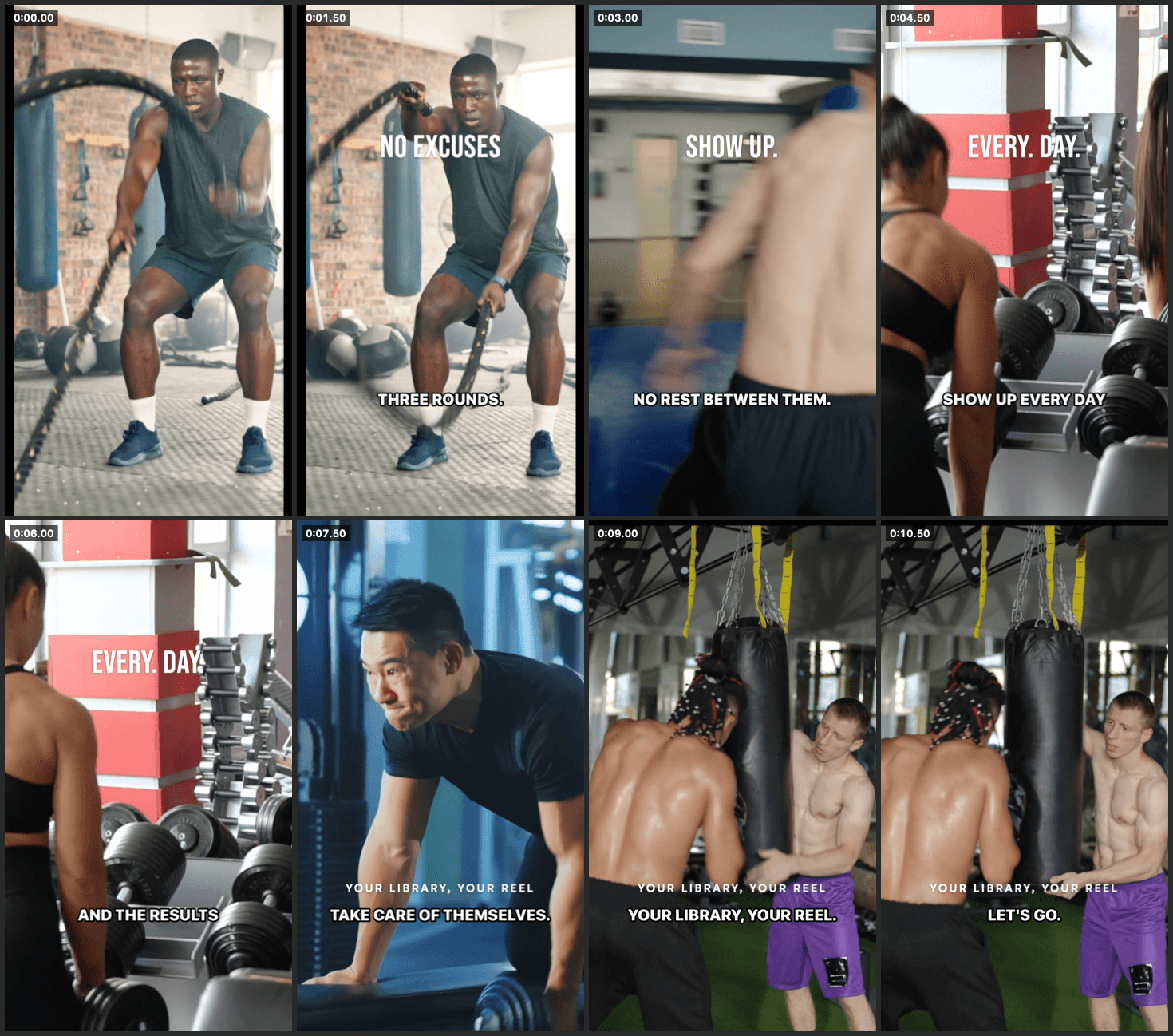
Look for a frame where you're mid-blink, or a cut that lands mid-word. Point at it by the words, not the seconds:
The cut after "results" is too tight. Give it a quarter second more.
The agent knows which clip you mean because it has the transcript.
Tune the threshold
A second is a good default for speech to camera. For a fast speaker, try 0.7 seconds. For a lecture, 1.5. Say the number and the agent recuts from the same transcript. Nothing is analysed again, so it costs nothing.
Same again but 0.7 seconds, and keep the pause before "here's the thing". That one is on purpose.
What you get
A video on the app's timeline, every cut one undo step away. The clips are stretches of the same file, used where it is. The recording is never copied. Caption it next, or export it as it is:
Export it at HD, 30 fps.
The MP4 lands in your Movies folder. The tutorial with the full set of asks, captions included, is Clean up a talking head.
