
Captions
Subtitles are a track of bars made from the words in your footage by an agent; you edit, style, position and burn them in.
Subtitles are a track of caption bars. An agent fills the track from the words spoken in analysed footage; from then on the bars are yours to edit, style and place, and they burn into every export. This page covers what a bar is, where the words come from, how the track is generated and regenerated, the Track and Bars panels, the eight caption styles, and the position on the canvas.
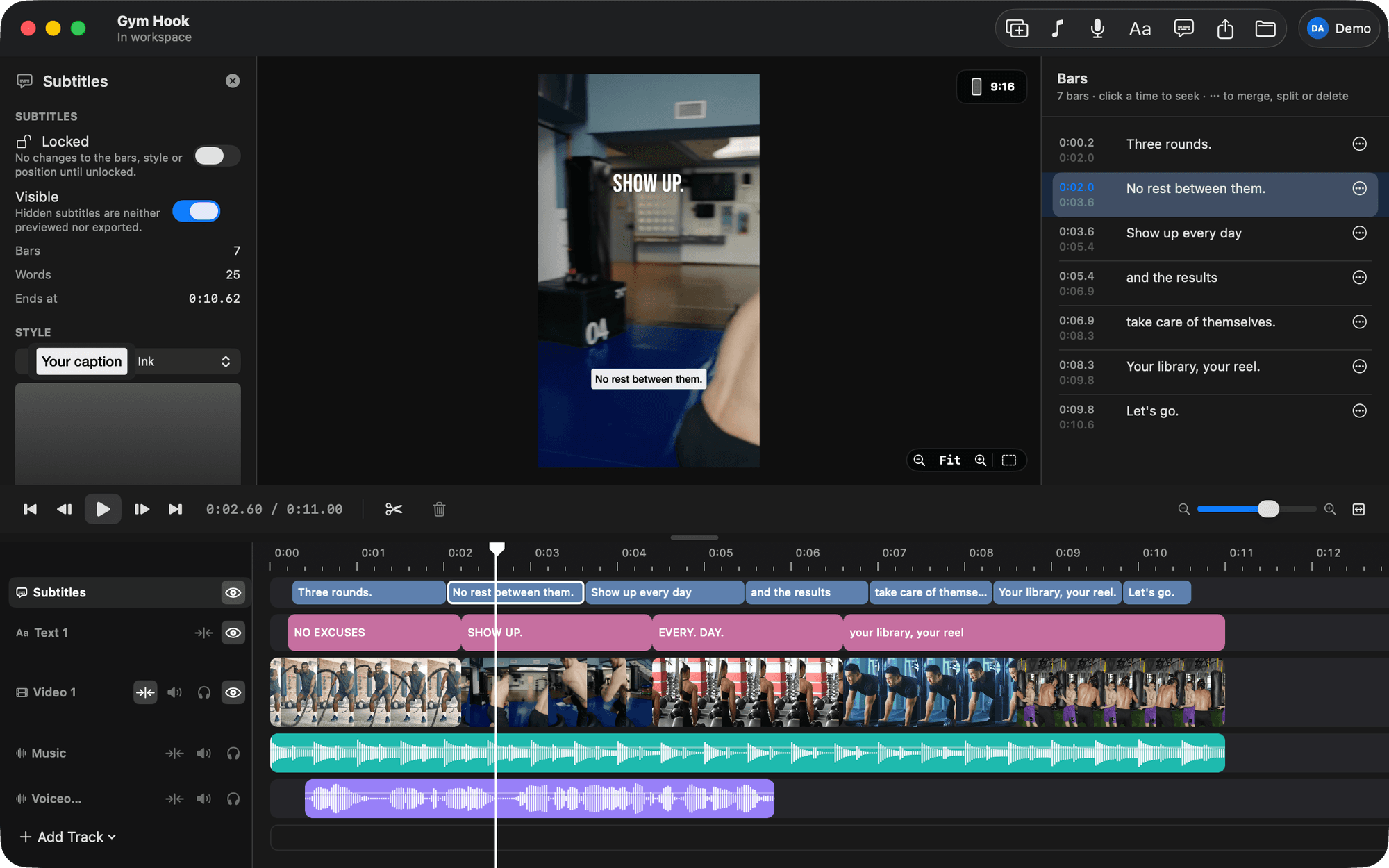
A track of bars
A subtitles track holds caption bars and nothing else: each bar is a start, an end and its text, in timeline seconds. That is all the app knows about a bar. Nothing links a bar to a track, a file or a word, so the bars can be generated by an agent or fixed one by one, and the app treats them the same.
Where the words come from
BetterEdits never transcribes anything. Next to a media file there may be its analysis, a hidden file written when the footage was analysed. Among other things it holds every word spoken in the file with its timing. That is what subtitles are made from. See Analysing footage.
A file that has not been analysed plays, cuts and exports as usual; it just has no words to give.
The agent makes the subtitles
There is no Generate button in the app. Ask your agent for subtitles and it runs captions-generate: a Subtitles track appears at the top with bars made from the words of the clips on a track, mapped to where those clips sit on the timeline and cut into short bars by the rules in Settings › Subtitles. A bar never crosses a cut, and a change of speaker ends a bar. The new track wears the default caption style. See How an agent edits.
A clip whose footage has not been analysed gives no bars; on Pro the app analyses it as soon as it is in the workspace, and the agent waits for that, or tells you the file has no words.
They do not follow the cut
The bars are yours from the moment they are made: move, trim, split, merge, edit, restyle, reposition, reorder the track. They do not move when you cut the picture afterwards, and nothing in the app watches the footage on their behalf. When the picture changes under them, ask the agent to generate them again, or do captions last.
Generate again
Asking the agent to generate the track again replaces every bar in it, edits included, with fresh ones cut by the current rules in Settings › Subtitles. It is also how new bar rules reach an existing track. See Settings.
Track and Bars
Click the subtitles row to open it on the right. Two tabs under its name: Track holds the style, position, lock, visibility and arrange; Bars lists the bars. Clicking a bar in the timeline opens Bars. Esc drops the selected bar.
Bars
The Bars tab lists every bar. Edit the words in place. Click a bar's time to seek there. The ⋯ button and the right-click menu offer Seek here, Merge with next, Split in half and Delete. Split cuts a bar at its middle word and shares the time out by the length of each half's text.
In the timeline, click a bar to select it and seek to it. Its right-click menu has Merge with Next, Split in Half, Duplicate Bar and Delete Bar. ⌘D duplicates the selected bar into the room before the next one. ⌫ deletes it.
Style
The Style section of the Track tab shows a menu of caption styles, each rendered in its own look, and a preview of the current one. Pick a style there. Applying a style copies its look onto the track; later edits to the style in Settings do not reach the track.
Eight styles come with the app: Soft Pill, Airy Caps, Editorial, Ink, Mono, Bold Outline, Yellow Pop and Outlined Serif. Edit Styles… opens Settings › Subtitle Styles, where you change them, add your own and choose the default for new tracks. See Settings.
Position
Choose Top, Middle or Bottom. For Bottom, the From bottom slider sets the distance up from the bottom edge, from 2% to 45%. 20% keeps captions clear of the Reels UI. Open the Guides menu in the viewer to see the safe areas while you decide. See Viewer.
Lock, hide, export
Lock the subtitles track to freeze the bars, style and position. Deleting a subtitles track with bars asks first; deleting a video track leaves its subtitles alone.
The eye hides a subtitles track from the preview and the export. Visible subtitles are burned into every export with the same renderer the viewer uses. There is no separate subtitle file. See Export.