
Voiceover and music
Recording a voiceover from the playhead, bringing in music, ducking, levels, and detaching a clip's sound.
Sound on the timeline is audio tracks: voiceover takes recorded from the playhead, music and other files imported like any media, and the sound detached from video clips. This page covers recording a take, bringing in music, how ducking lowers music under a voice, levels and fades, detaching audio, and exporting one clip's sound.
Record a voiceover
- Put the playhead where the take should start.
- Press ⌘R, click the microphone in the transport bar above the timeline, or choose Clip › Record Voiceover.
- In the Record a voiceover sheet, pick Record to (New audio track or an existing one) and a Microphone (System default or a device). The sheet shows the input level. Click Record.
- The viewer and the transport count 3, 2, 1. Recording starts and the timeline plays from the playhead. The take draws live on its track and the transport shows "Recording with" the device.
- Press ⌘R or click Stop to end the take. During the count the same action cancels.
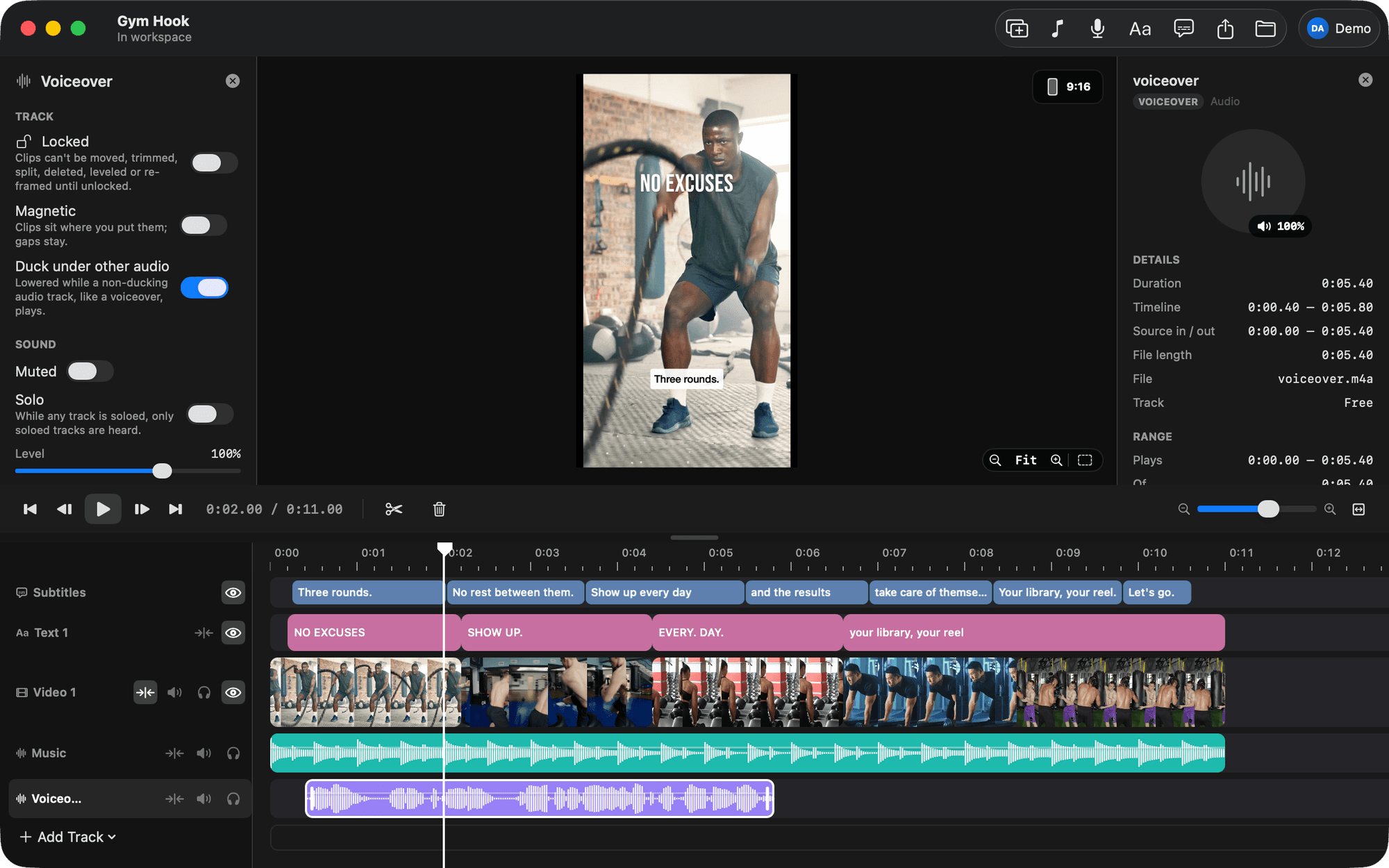
The first time, macOS asks for microphone access. A new track is named Voiceover 1, Voiceover 2 and so on and does not duck; a magnetic audio track always gets a new one, so the take lands at the playhead. The device you chose is remembered for the next take. The take is a clip like any other: trim, move, split, level. Its file is saved in the video's own folder with the rest of the video's media, so it shows under This video in Sources and travels with the workspace.
Music
Music is a sound file on an audio track. Press ⌘I and choose the file, click Import… at the foot of the Sources sidebar, or drop an audio file on an audio row. The file lands at the playhead on the active audio track, or on a new one. A file from outside the video and its media folders is copied into the video. See Sources.
Audio tracks are free, so drag the clip to position it, trim its edges and drag its level line. Audio never lengthens the piece.
Ducking
Ducking is a switch per audio track: Duck under other audio in the track panel or the header menu. A ducking track is lowered while any non-ducking audio track plays, with a short ramp either side. Audio 1 ducks by default and voiceover tracks do not, so music drops under the take on its own. There are no keyframes to draw. See Tracks.
Levels
Each clip has a level from 0% to 150%, dragged on the clip or set in the sidebar. Each track has a level of its own on top. Mute silences a track; solo keeps only soloed tracks audible. See Timeline and Tracks.
Fades
Fade in and Fade out in the Level section of the clip sidebar set how long a clip's sound takes to come up at its start and go down at its end, up to 30 seconds (and never longer than the clip). Give music a fade out so it does not stop dead. Splitting a clip leaves the fade in with the left piece and the fade out with the right one.
Every cut in sound also gets a fade of a hundredth of a second by itself, so a cut in the middle of a word or a note never clicks. Two pieces of one file that still sit edge to edge, a split nobody moved, play straight through with no fade at all.
Detach audio
Select a video clip with sound and press ⇧⌘D, or click Detach Audio in the sidebar. The clip's sound is copied onto a new audio track named after the file and the video clip is silenced. Picture and sound then cut separately. Or drop a video onto an audio track and only its sound lands there, a reference reel's own sound under a copy of it being the usual case. See Clips.
Export a clip's sound
Select an audio clip and press ⇧⌘E. The export sheet writes that clip alone as an M4A file with the clip's own level applied. See Export.