
Placeholders and templates
Named stand-ins for footage to come, the five built-in structures, replacing and filling placeholders, and templates.
A placeholder is a clip with no file behind it: a named slot for footage to come. This page covers adding one, what it shows, the sidebar, the three ways to replace it with a file or a clip, the five built-in structures a new video can start from, and the template files behind them. A placeholder is an ordinary clip in every other way; see Clips.
Add a placeholder
Press ⇧⌘P, choose Clip › Add Placeholder, pick Add Placeholder in a track header's menu, or right-click empty track space and choose Add Placeholder Here. A 3-second placeholder lands at the playhead on the active video or audio track. They are named Placeholder, Placeholder 2 and so on.
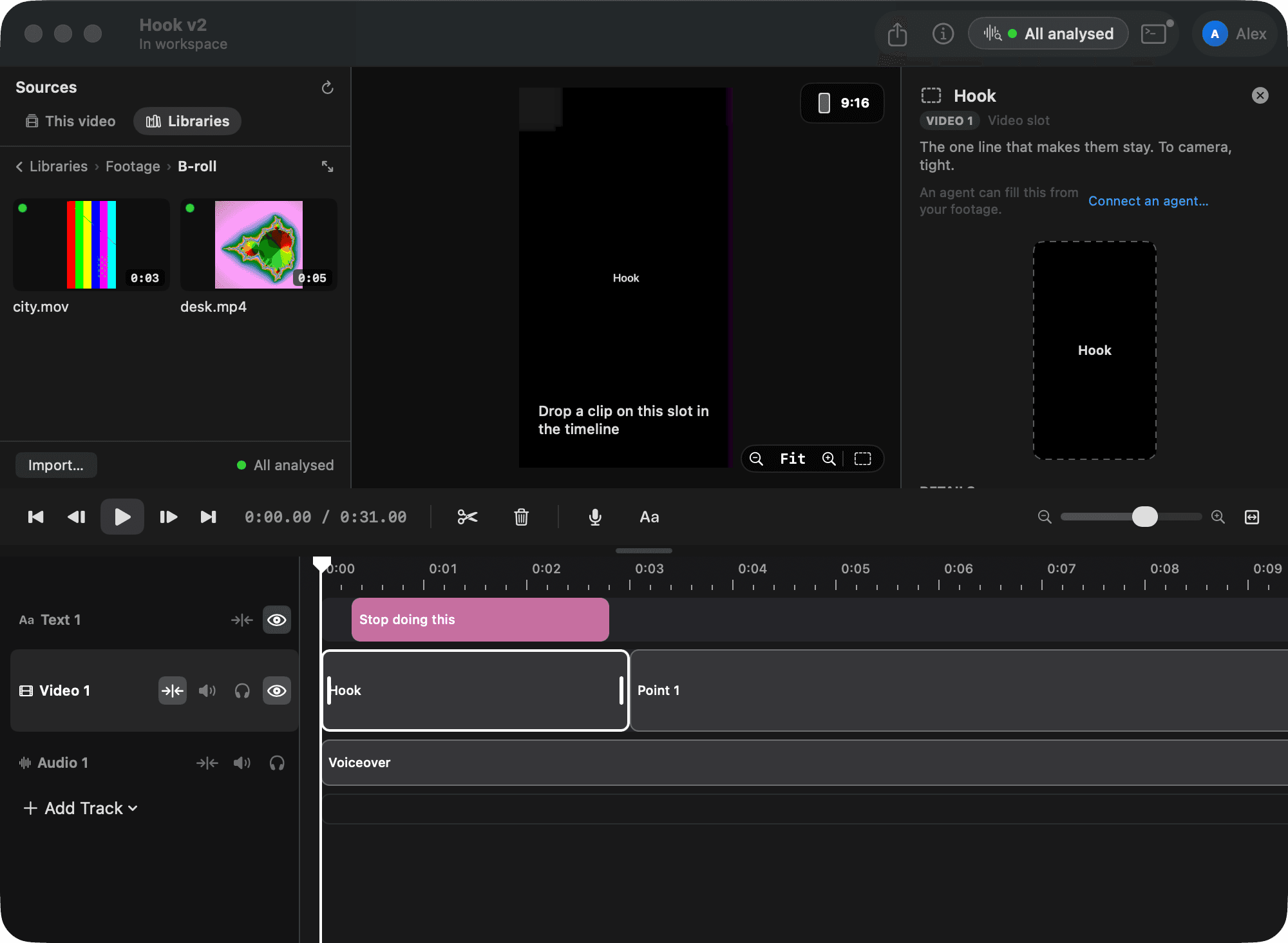
On a video track a placeholder plays as a black plate with its name, in the viewer and in exports. On an audio track it is silent. Trim, move, split, copy and duplicate it like any clip. It can be stretched to an hour. It takes its track's opacity.
The sidebar
Select a placeholder and the sidebar shows its name, a preview plate, its note, and Details: duration, timeline range, and whether its track is magnetic or free. Edit the name at the top. The note says what goes there, for you and for the agent.
Replace it with a file
Three ways:
- Replace with video or photo… (or Replace with audio…) in the sidebar.
- Replace with File… in the placeholder's right-click menu.
- Drop one file onto it in the timeline. Only a single file dropped on a placeholder replaces; a file dropped on a real clip never does.
The file takes the placeholder's spot and length, playing from its own start. If the file is shorter the app asks: Keep its own length, Fill the Rest with a new placeholder, Choose Another… file, or Cancel.
Replace it with a clip
Drag a clip already on the timeline through the middle of a placeholder. The placeholder lights up. Let go and the clip takes the placeholder's spot and length, bringing its own in and out points, level and framing, and leaves its old spot. The outer fifths of the placeholder still mean "reorder beside it". A shorter clip gets the same choices as a shorter file.
Replacing the file behind a real clip works the same way; see Clips.
Structures
New Video… can start a video from one of five built-in structures instead of blank: Talking head, Tutorial, B-roll montage, Before and after and Listicle. Each lays out named placeholders with notes on the video track, a voiceover or music slot underneath, and the texts that go with them. Pick one in the sheet, or start one from the command line with project-new --structure. Then shoot to the list and drop the clips on the slots. The five and their slots are on Videos.
Templates
A template is a plain JSON description of a video without its footage: video and audio segments with a name, start, duration and notes, texts with their words, timing, favorite and position, plus a name and notes. Video segments become named placeholders in order on the first video track, audio segments placeholders on the first audio track, and texts text clips. The built-in structures are templates too.
File › Import Template… starts a video from a template file. An agent lays out the same thing through the document: placeholders with names, durations and notes, and texts. See How an agent edits.