
Viewer and canvas
The viewer at the top of the project window, the canvas ratio, the safe-area guides, viewer zoom, and what you can do to clips and texts on the canvas.
The viewer is the top of the project window. It shows the frame under the playhead at the canvas ratio, with the ratio pill in its top right corner and the Guides menu and the zoom bar below it. This page covers the canvas, the guides and the zoom; framing a clip on the canvas is on Clips and placing a text on it is on Text.
The viewer
The viewer renders at 1080p to stay responsive; exports render at the size you pick from the original files. See Export. With nothing on the timeline it says "Drop your clips here" and offers Import Media… and Record Voiceover. Before a voiceover it counts 3, 2, 1.
Click a tile in the Sources sidebar and the viewer plays that file instead, with its own controls, until you press Esc or touch the timeline. See Sources.
Canvas ratio
New videos are 9:16. The pill in the viewer's top right corner shows the current ratio. Click it to choose from miniatures:
| Ratio | Pixels | For |
|---|---|---|
| 9:16 | 1080 × 1920 | Reels, Stories, Shorts, TikTok |
| 16:9 | 1920 × 1080 | YouTube and screens |
| 1:1 | 1080 × 1080 | Square posts |
| 4:5 | 1080 × 1350 | Feed posts |
The app asks before changing: "Change the canvas to 16:9?" The change is one undo step. Positions and sizes are stored relative to the canvas, so clips, texts and captions keep their placement when the ratio changes. Exports follow the canvas. New Video… sets the ratio a video starts with; an agent changes it in the project document. See Videos.
Guides
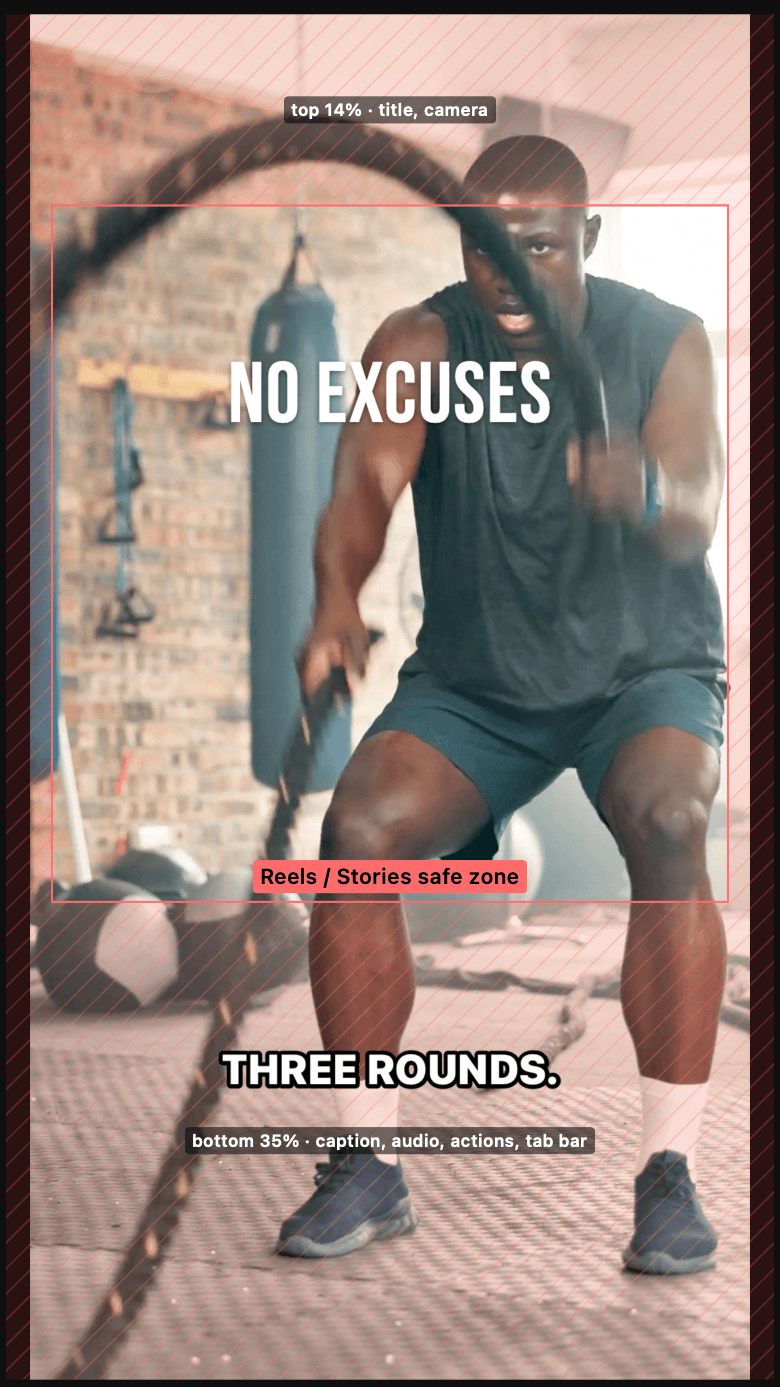
The Guides menu under the viewer shades the parts of the picture an app's own controls will cover, so text and captions land where they can be read.
| Guide | Shows |
|---|---|
| Reels UI | The top and bottom zones the Reels controls cover, and the safe zone between |
| Feed | The crop the feed shows of a 9:16 picture |
| Grid | The square crop the profile grid shows |
| Square | The 1:1 crop |
Turn each on or off, or Show All and Hide All. The choice is remembered. Guides are drawn only in the viewer, never in an export. Captions at Bottom start 20% up from the edge, which keeps them clear of the Reels UI; see Captions. The caption style preview in Settings has the same menu.
Zoom
The zoom bar under the viewer has zoom out, Fit or the current percentage, and zoom in. ⌥⌘= and ⌥⌘- step it, ⌥⌘0 fits. Pinch or ⌘-scroll zooms too, and two-finger scroll pans a zoomed viewer. Zoom changes what you see, never the video.
On the canvas
With a video clip selected, the viewer shows its handles: drag the picture to move it, drag a corner to scale it, and in Crop mode drag an edge to crop. ⌥-scroll and pinch scale it too. See Clips.
Click a text to select it, drag it to move, drag a corner to resize the whole look, double-click to edit the words. See Text.
Captions are placed from the subtitles track's panel, not by dragging. See Captions.