
Export
The export sheet, resolutions, frame rates, HDR, what ends up in the file, exporting one clip, and where the files go.
Export renders the timeline to one MP4 with the visible texts and subtitles burned in. This page covers the export sheet and its three choices, what the file contains, exporting a single clip, and where files land, which is never inside the workspace.
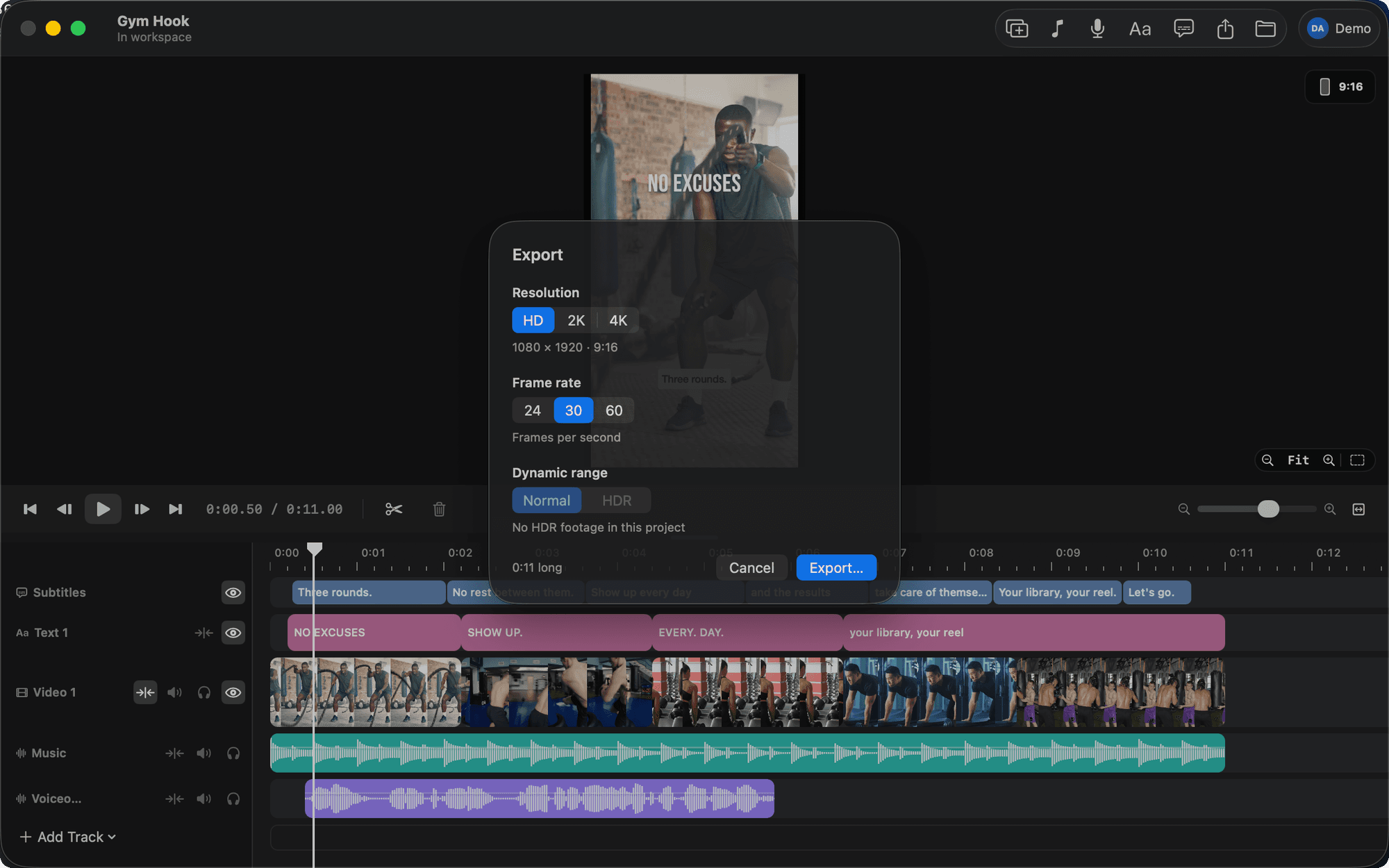
Export the video
Press ⌘E or click Export in the toolbar. The export sheet opens.
| Option | Choices | Default |
|---|---|---|
| Resolution | HD, 2K, 4K | The footage's own size, rounded up |
| Frame rate | 24, 30, 60 | 30 |
| Dynamic range | Normal, HDR | HDR when the footage is HDR |
The resolution row shows the pixel size for the current canvas: HD is 1080 on the short side, 2K is 1440, 4K is 2160, so 9:16 HD is 1080 × 1920 and 16:9 HD is 1920 × 1080. 60 fps only adds frames when the footage was shot at 60. HDR is available only when the project has HDR footage; it writes HLG in 10-bit HEVC like the original iPhone footage, with captions, texts and titles as bright as the brightest part of the picture, so white words sit with the HDR highlights instead of looking flat beside them (the viewer shows them the same way). Normal tone-maps to standard range in H.264 with AAC sound. In an HDR export a standard-range file (a screenshot, a screen recording, a photo) sits at standard white, where the footage's own whites sit; a clip's In HDR setting in the sidebar can lift it with the captions instead, which is what a screenshot beside white type wants. Frames with no HDR footage in them carry the footage's HDR tags too, so a cut to a screenshot no longer steps darker on an HDR display.
When the piece has something nobody would see in the numbers, the Export button wears a small orange triangle and the sheet lists it above the options with its time: sound that runs past the last picture (the file would end in black), a picture seen for less than a tenth of a second (a sliver of the track underneath where a clip ends early), a stretch with no picture, or a missing file on the timeline. Click one and the sheet closes with the playhead there. They are warnings: nothing stops you exporting. An agent is told the same in every lint and project-commit answer.
Click Export…, choose where to save, and the app renders with a progress sheet you can cancel. The file is an MP4 named after the video. The first export in a workspace ends in a sheet that says where the file went, with Reveal in Finder, Play and Make Another.
What ends up in the file
Visible subtitles and texts are burned in with the same renderer the viewer uses. Generated graphics are drawn from their scenes at the export's size, straight into the picture, the same way the viewer draws them, so no codec touches them; the photos and frames of footage a scene shows are drawn from their files, so HDR footage in a graphic stays HDR. A graphic the app cannot draw (one an earlier version rendered from HTML) shows nothing, and the agent's export answer says so. Hidden tracks are left out. Muted tracks are silent. Placeholders render as black plates with their names, missing files as red plates. The canvas ratio decides the shape. See Viewer, Text and Captions.
Export one clip
Select a clip and press ⇧⌘E, or click Export this clip… in the sidebar. A video clip renders its stretch of the timeline with everything on it. An audio clip is saved alone as an M4A with the clip's own level applied. See Clips.
Where files land
Never inside the workspace. The save panel opens on your Movies folder the first time (Downloads when there is no Movies folder) and, after that, on the folder you exported to last. An agent's export writes to that same folder as <Name> <date>.mp4 unless it gives a path, and its --preview makes a quick 540p standard-range file for checking. See Command line.