
Clips
The clip sidebar, framing a clip on the canvas with scale, position and crop, animating that framing, Edit Range, replacing a clip's file, detaching its sound, exporting one clip, notes, photos and missing clips.
A clip is a stretch of a media file placed on a track. Select one in the timeline and its settings open in the sidebar on the right. This page covers that sidebar and everything you can do to one clip: frame it on the canvas, move that framing over the clip, slide which part of the file it plays, swap its file, detach its sound, export it alone, and note what it is for. Cutting and moving clips is on Timeline.
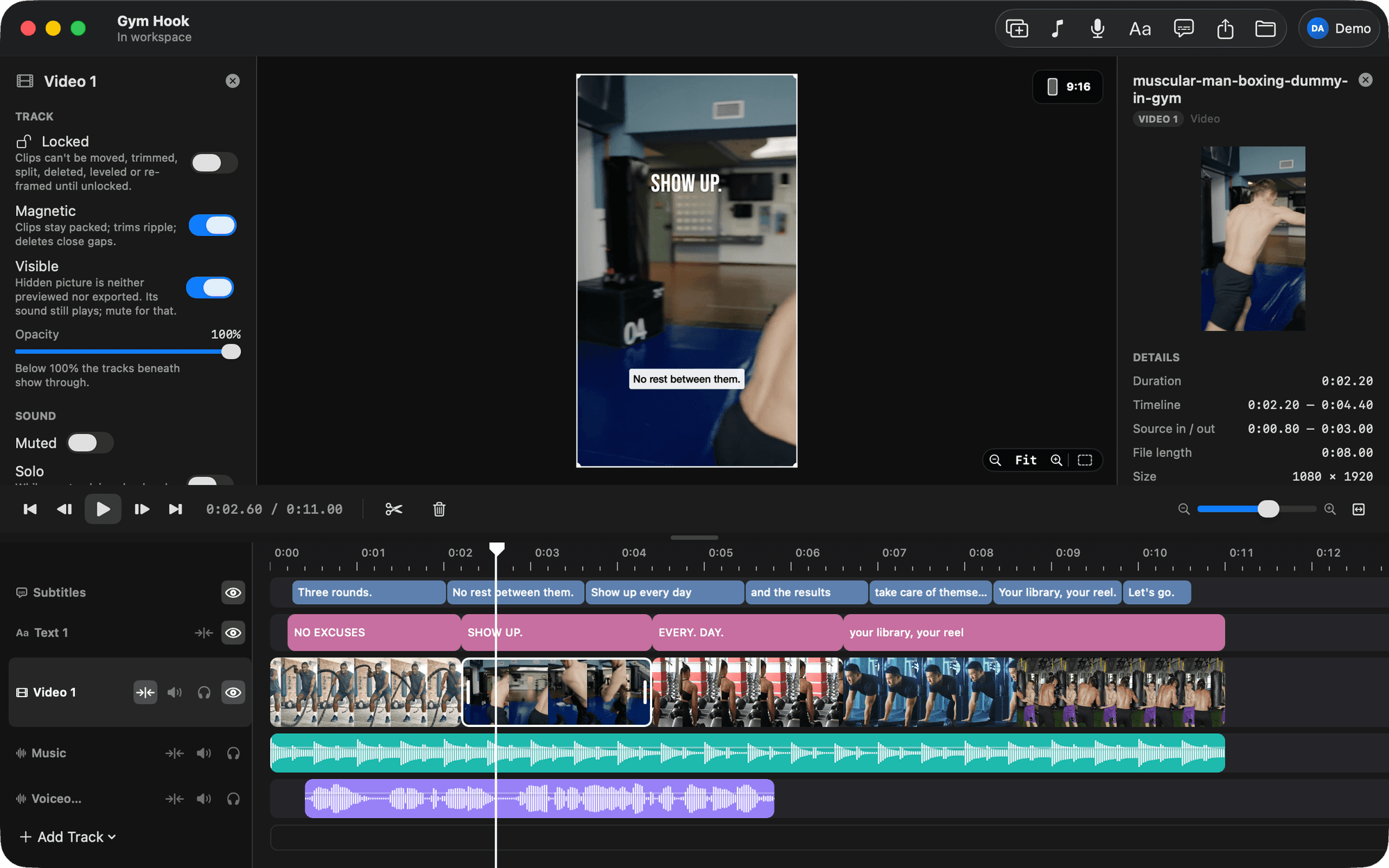
The clip sidebar
| Section | Controls |
|---|---|
| Details | The file's name, its length and range, with Show in Sources under it |
| Range | Edit Range… |
| Replace | Replace with video or photo…, or Replace with audio… |
| Placement | Fit, Fill, Reset, Crop mode and Clear crop; the framing of video clips and photos |
| Animation | Animate placement, the easing and Reverse; a move from one framing to another over the clip |
| Filter | A row of tiles (None, Mono, Noir, Warm, Cool) showing this clip with each filter, an intensity slider, and Adjust: brightness, contrast, saturation, warmth, tint, highlights, shadows, fade, sharpen, vignette. See Filters |
| Level | The clip's volume, 0% to 150%, Fade in and Fade out, and Detach Audio for a video clip with sound |
| Export | Export this clip… |
| Note | A note kept with the clip, never shown in the video |
Placeholders and texts have sidebars of their own. See Placeholders and templates and Text.
Framing
A video clip or photo fits the canvas at first. The Placement section of the sidebar changes that:
- Scale runs from 0.05 to 8, where 1 fits the canvas.
- Position moves the picture; the values are fractions of the canvas.
- Crop cuts each edge, left, right, top and bottom, by up to 45%.
- Fit shows the whole picture inside the canvas. Fill covers the canvas. Reset puts everything back.
- Crop mode turns the corner handles in the viewer into edge handles for cropping. Clear crop removes the crop.
Or do it in the viewer with the clip selected: drag the picture to move it, drag a corner handle, pinch, or ⌥-scroll to scale it, and in Crop mode drag an edge handle to crop. Moves snap to the canvas centre and its edges; scales snap to Fit and Fill. See Viewer and canvas.
Positions and scales are stored relative to the canvas, so a clip keeps its framing when the canvas ratio changes. See Viewer and canvas. A locked track refuses framing changes.
Animation
A video clip or photo can travel from one framing to another over its length: a slow push-in on a talking head, a snap zoom on a short clip, a pan across a wide shot, a slow zoom on a photo.
Turn on Animate placement in the Animation section. The clip gets an End framing, a little closer than where it starts, and a Start | End switch appears at the top of Placement. Pick a side and the playhead goes to the clip's first or last frame; Scale, Position, Fit and Fill, and the handles in the viewer, then set that side. The picture moves from Start to End while the clip plays, in the viewer and in the export. Crop is the clip's, the same on both sides.
- Easing sets the pace: Linear keeps one speed, Ease in starts slowly, Ease out arrives slowly, Ease in and out does both.
- Reverse trades Start and End, so a push-in becomes a pull-out.
- Splitting an animated clip keeps the move going across the cut. Trimming makes the same move take less time.
- Turn Animate placement off, or click Reset, to hold the picture still again.
Edit Range
Edit Range… (the sidebar, or the clip's right-click menu) slides which part of a file a clip plays without moving the clip or changing its length. The sheet shows the whole file as a strip with a window the clip's length. Drag the window along it and click Done.
Replace
Replace with video or photo… (or Replace with audio…) in the sidebar, or Replace with File… in the clip's right-click menu, swaps the file behind a clip. The app confirms first: "Replace “x” with “y”?" The new file takes the clip's spot and length, playing from its own start. If the file is shorter the app asks: Keep its own length, Fill the Rest with a placeholder, Choose Another… file, or Cancel. A file from outside the video and its libraries is copied in.
Files dropped on the timeline never replace a real clip, only a placeholder. See Placeholders and templates.
Detach audio
Select a video clip with sound and press ⇧⌘D, click Detach Audio in the sidebar, or choose Clip › Detach Audio. The clip's sound is copied onto a new audio track named after the file and the video clip is silenced. Picture and sound then cut separately. See Voiceover and music.
The same thing without the picture: drop a video onto an audio track, from the Sources panel, a library window or Finder, and only its sound lands there. The clip is the video file itself, so the Sources panel shows it as the video it is; the sidebar calls the clip the sound of a video, shows the video's frame with a Sound only mark, says where the same file's picture is on the timeline (and whether it is silenced there) with a button to that clip, and an audio track that plays video files' sound names them. In the timeline the clip wears a film badge. Replace with audio or video… on an audio clip takes a video too. A video with no sound goes on a video track instead and says so.
Export one clip
Select a clip and press ⇧⌘E, or click Export this clip… in the sidebar. A video clip renders its stretch of the timeline with everything on it. An audio clip is saved alone as an M4A with the clip's own level applied. See Export.
Notes
Every clip takes a note: what it is for, what to replace it with, what the agent should know. Type it in the sidebar. A note is kept in the video's files and shown in the sidebar, never rendered. An agent reads notes in the document it gets and can write them too. Tracks and placeholders take notes as well.
Photos
A photo dropped on a video track becomes a 3-second clip. Trim it to any length up to 60 seconds. It frames like a video clip.
Missing clips
A clip whose file is gone from disk turns red, reads "Missing: file" and plays as a labelled plate until the file is back or relinked. Relink… and Choose from Sources are in its right-click menu and its sidebar. See Sources.